Map Editor Guide
HeroByte's map editor runs on the live table: every room, wall, door, and brushstroke appears for your players the moment you commit it. No export step, no "load map" — you build the dungeon around the party, even mid-session.
It's DM-only: enter DM mode first, then press 🏗️ Build map in the top toolbar. On a phone or tablet the door is a different one — see On a phone or tablet at the end.
The Tool group menu organizes the palette into Terrain, Structures, Objects, Lighting, and Generate. Returning to a group remembers its last tool. Map history, Select, Sample, Layers and Inspect stay above the scrolling tool settings; the armed tool's name and Done building stay below them. The header names the map you are editing live.
Building by hand is one of three ways to put a map on the table — the other two are bringing your own art and generating a place mid-session with the Kicked-In Door. Running a Game compares them and shows how to mix them (including how to get fog and doors onto a downloaded image using only the wall and door tools below).
Starting a live map
Use Start live map to begin. (If the table already has a map and you have a different saved map open in DM Menu → Maps, the palette names both — On table and Viewing in library — and offers ▶ Resume editing _table map_ instead; it never swaps maps by itself.)
▶ START LIVE MAP creates a fresh editable map (date-stamped, huge — 8192×8192), binds it to the table, and lights up the ● LIVE badge — loading… sits beside the badge while that round trip runs. From now on every edit auto-compiles and broadcasts; you'll see a brief saving… flicker in the same spot as each commit lands.
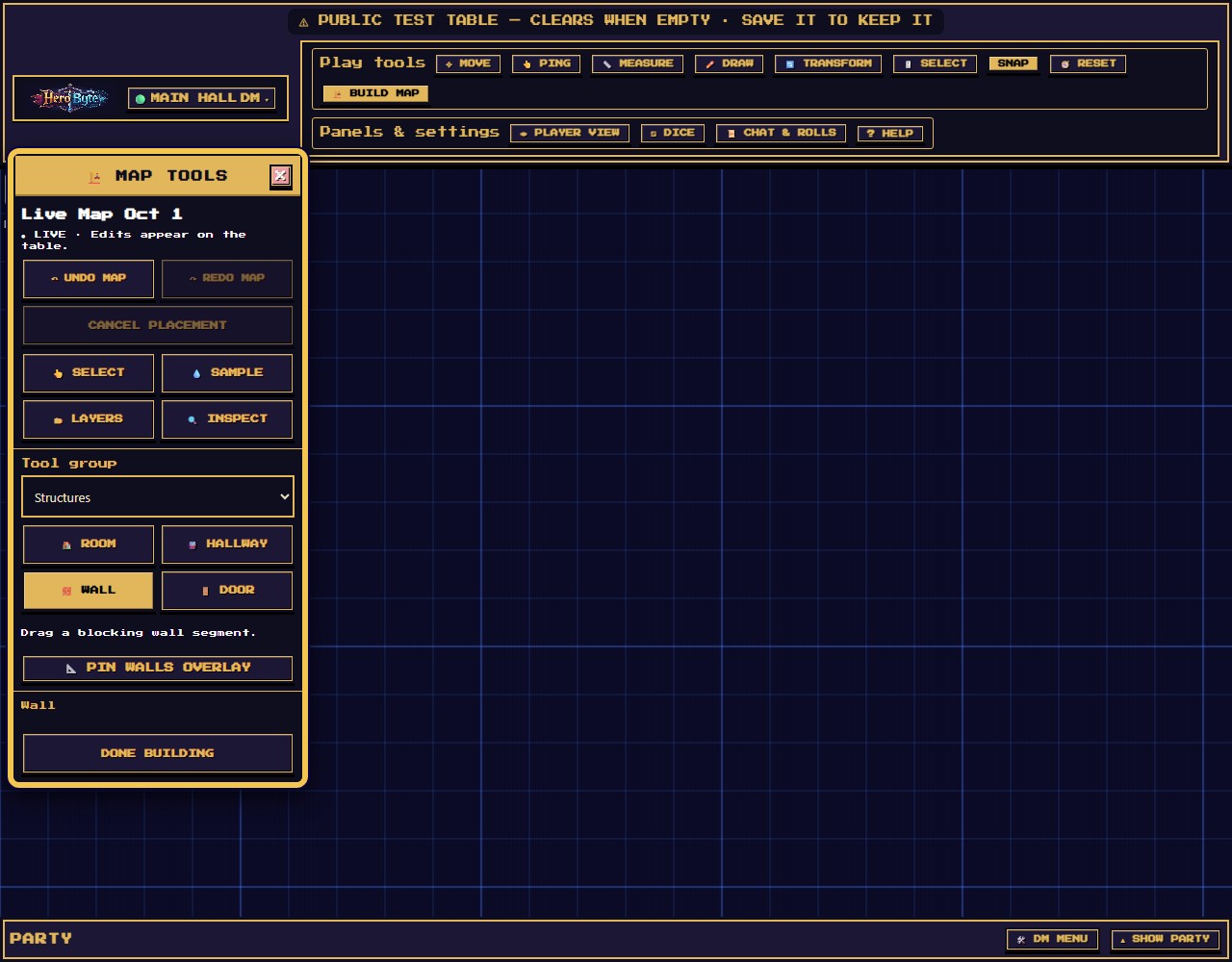
Things to know before your first wall:
- Escape cancels an in-progress drag; pressing it again (with nothing in progress) leaves map-edit mode. The map stays live — closing the palette never unbinds it, and reopening resumes where you left off.
- ↶ UNDO MAP / ↷ REDO MAP stay above desktop tool settings; the phone keeps them in its dock. They affect map edits (Ctrl+Z / Ctrl+Y while the map owns keyboard input). Each drag, stroke, or generate is exactly one undo step. Cancel placement under them (Cancel stroke while Paint or Erase is armed) is live only while a drag or stroke is unfinished, and abandons it the way Escape does. Done building returns to play.
- Only one edit is sent at a time. If you finish a drag or a click while the previous one is still in flight, that gesture is dropped rather than queued, and you'll get "Still saving the last change — draw that again." Draw it again — nothing was half-applied. You'll notice this most on a phone, where the round trip is longest.
- Tokens don't respond to clicks while you're editing — leave the mode to move them.
- If the table still has a raster background image, the palette warns you: live terrain and a background photo fight visually. Clear the background (DM Menu → Maps → Current table map) for a clean canvas.
🏠 Room and 🚇 Hallway — the structural tools
Room drags a rectangle; on release you get floor terrain and a real blocking wall around the perimeter — one committed room, one undo step. The selected wall-ring material also paints a wall band; None omits that paint while keeping the blocking perimeter. The preview shows the true baked art plus a live cols × rows readout while you drag.
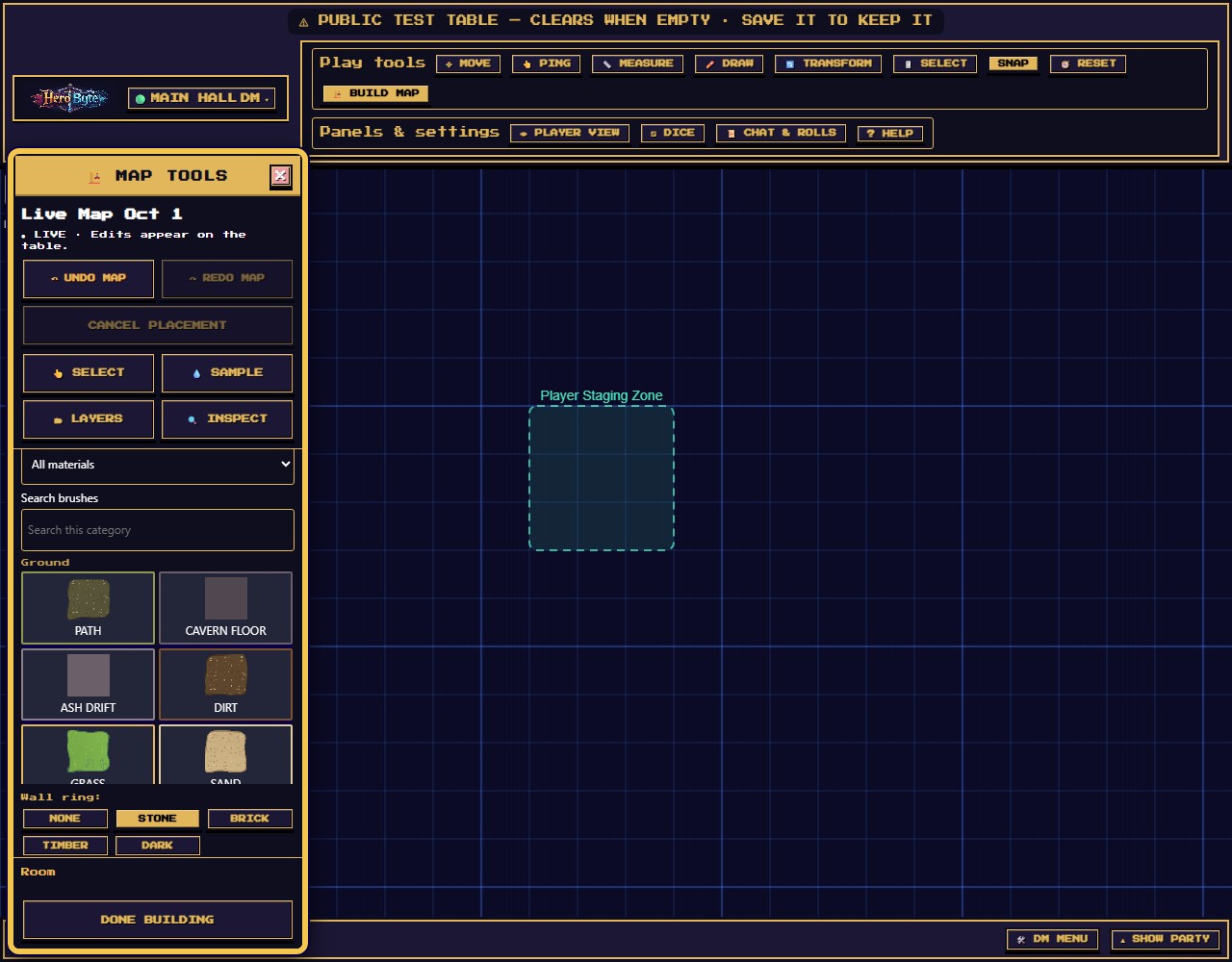
- The brush deck (below the tools) chooses the floor — any of the 34 terrain families.
- Wall ring: picks the wall style — None, Stone, Brick, Timber, Dark.
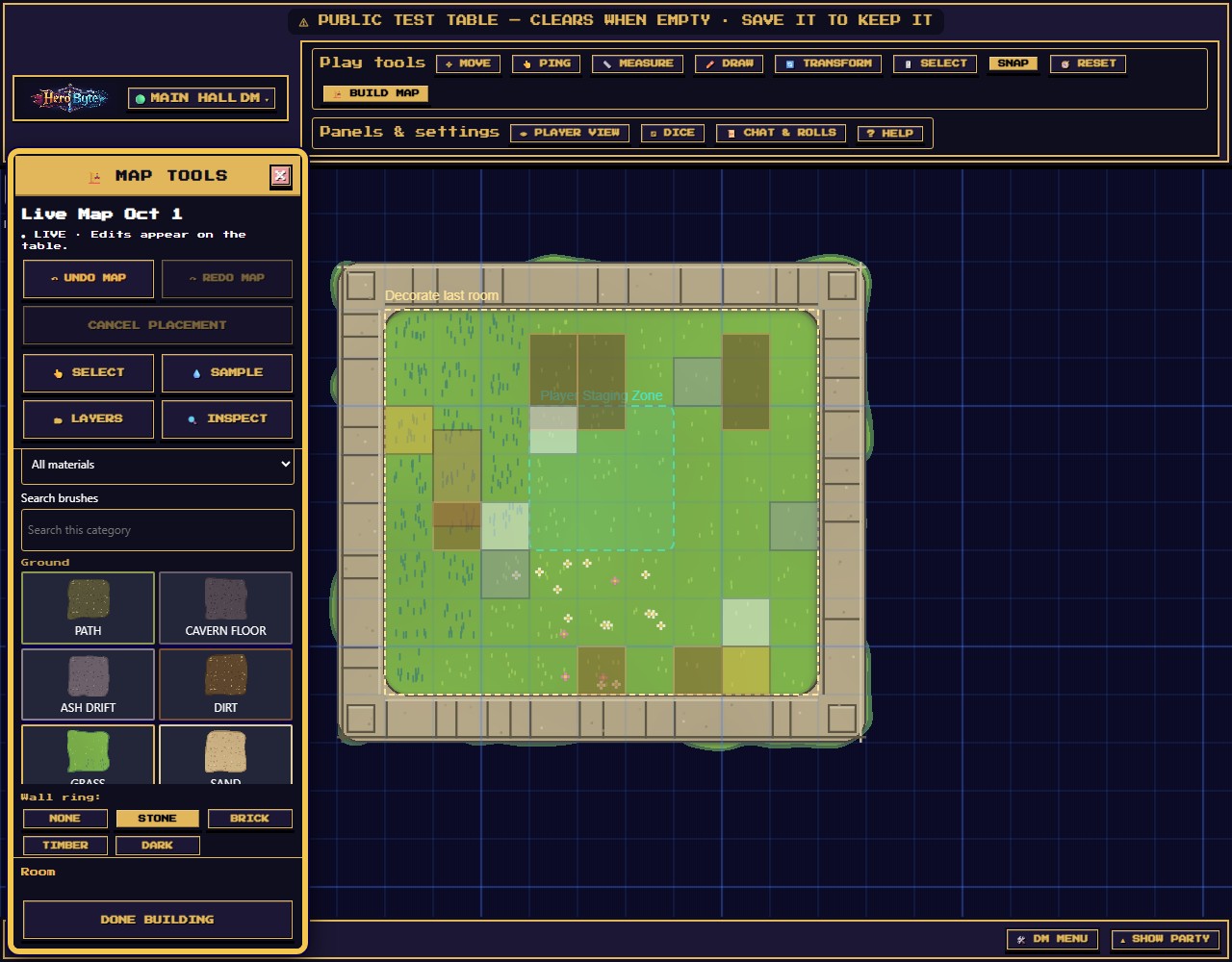
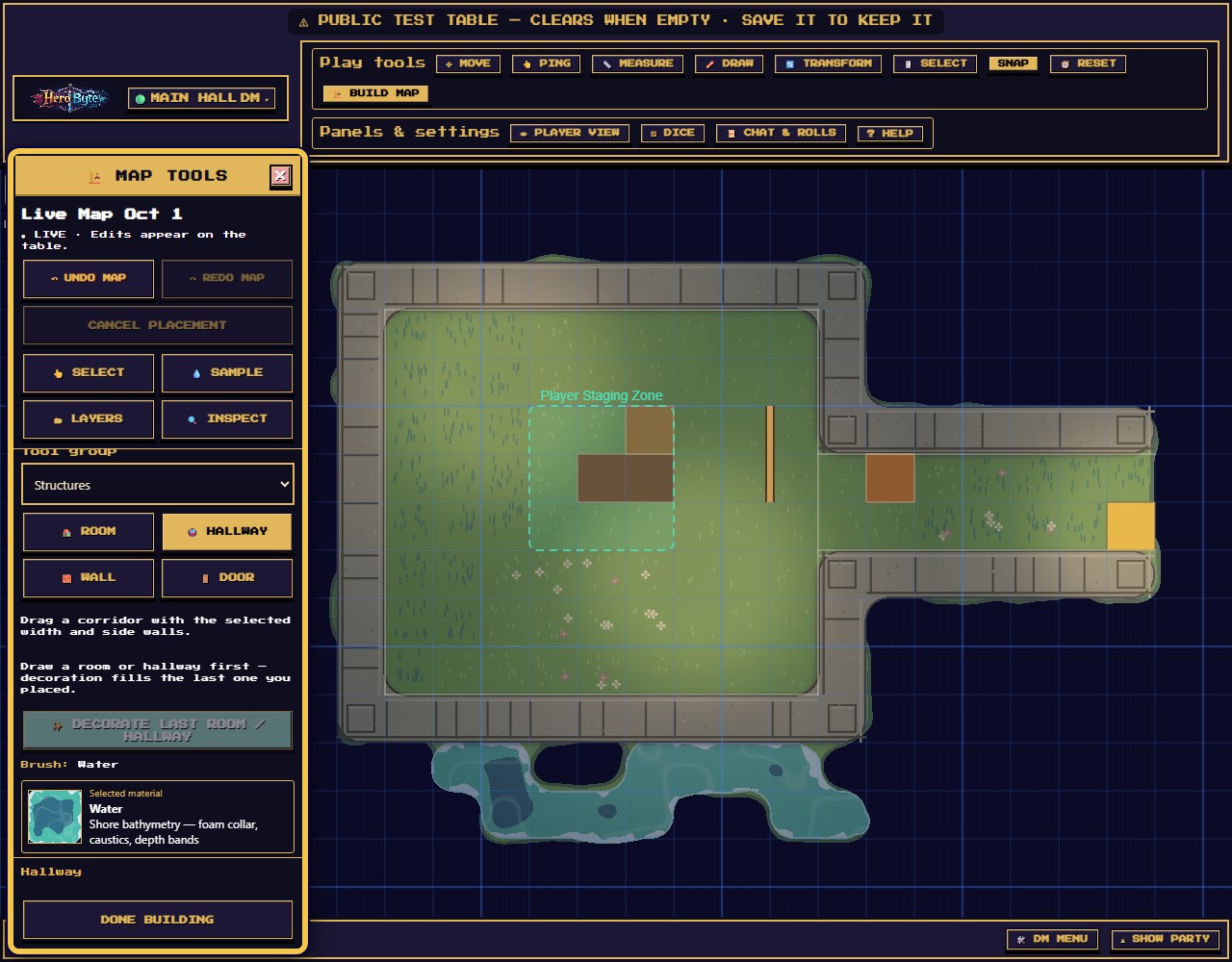
Hallway is the corridor sibling: drag along its length, choose Width (cells) 1–4, and only the two long sides get walls — the ends stay open for connecting. Side walls picks their style from the same choices as the wall ring. Hallways and rooms are polite neighbors: where they touch an existing floor, the shared wall band steps aside.
🧱 Wall and 🚪 Door
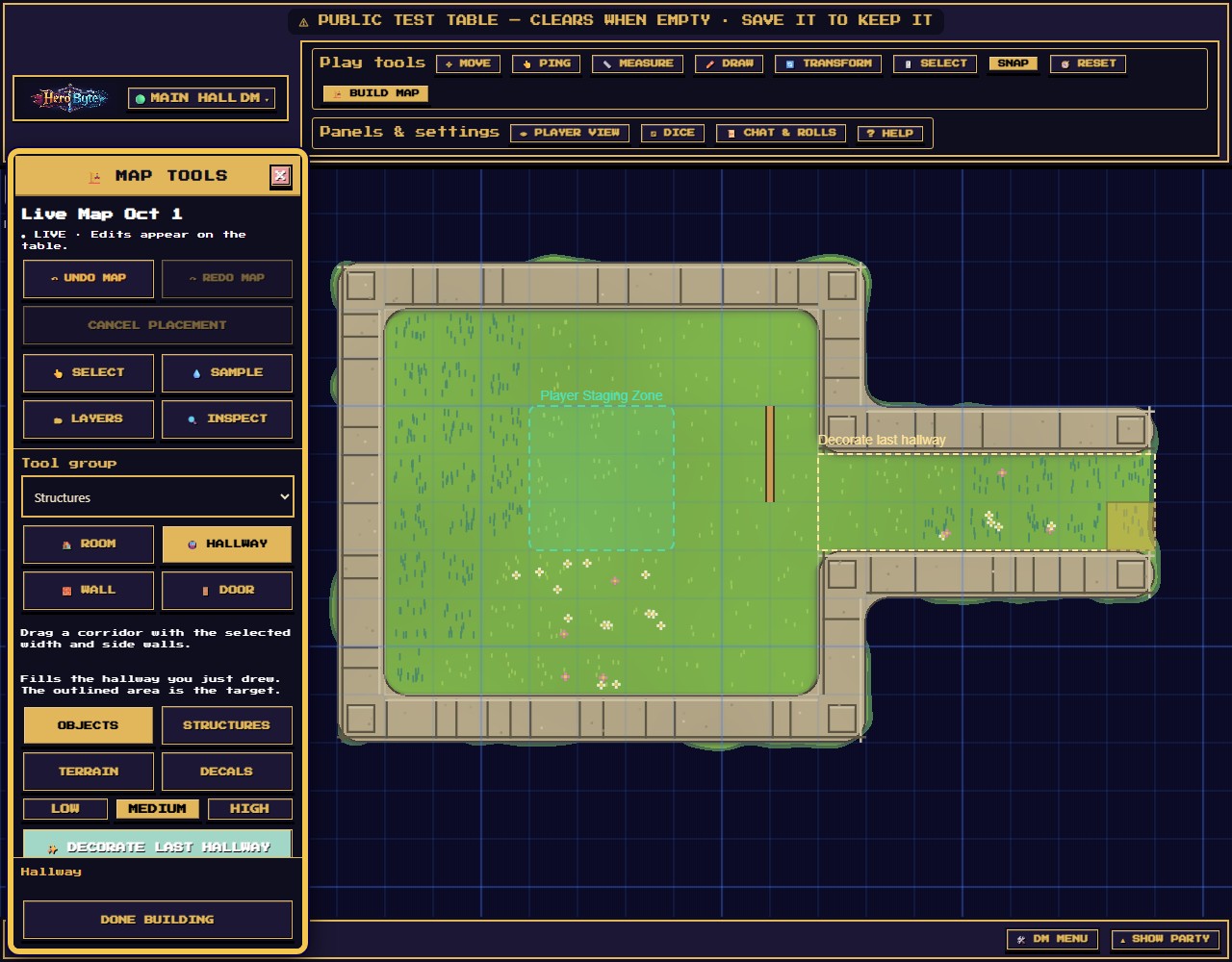
- Wall: drag point-to-point for one straight blocking wall. Walls are invisible to players — they exist to block movement and sight (fog). While editing you always see them as a translucent overlay; 📐 PIN WALLS OVERLAY keeps that overlay up after you leave the mode (players never see it).
- Door: drag across a wall to set a door — its length is the drag, its angle follows. Doors author closed.
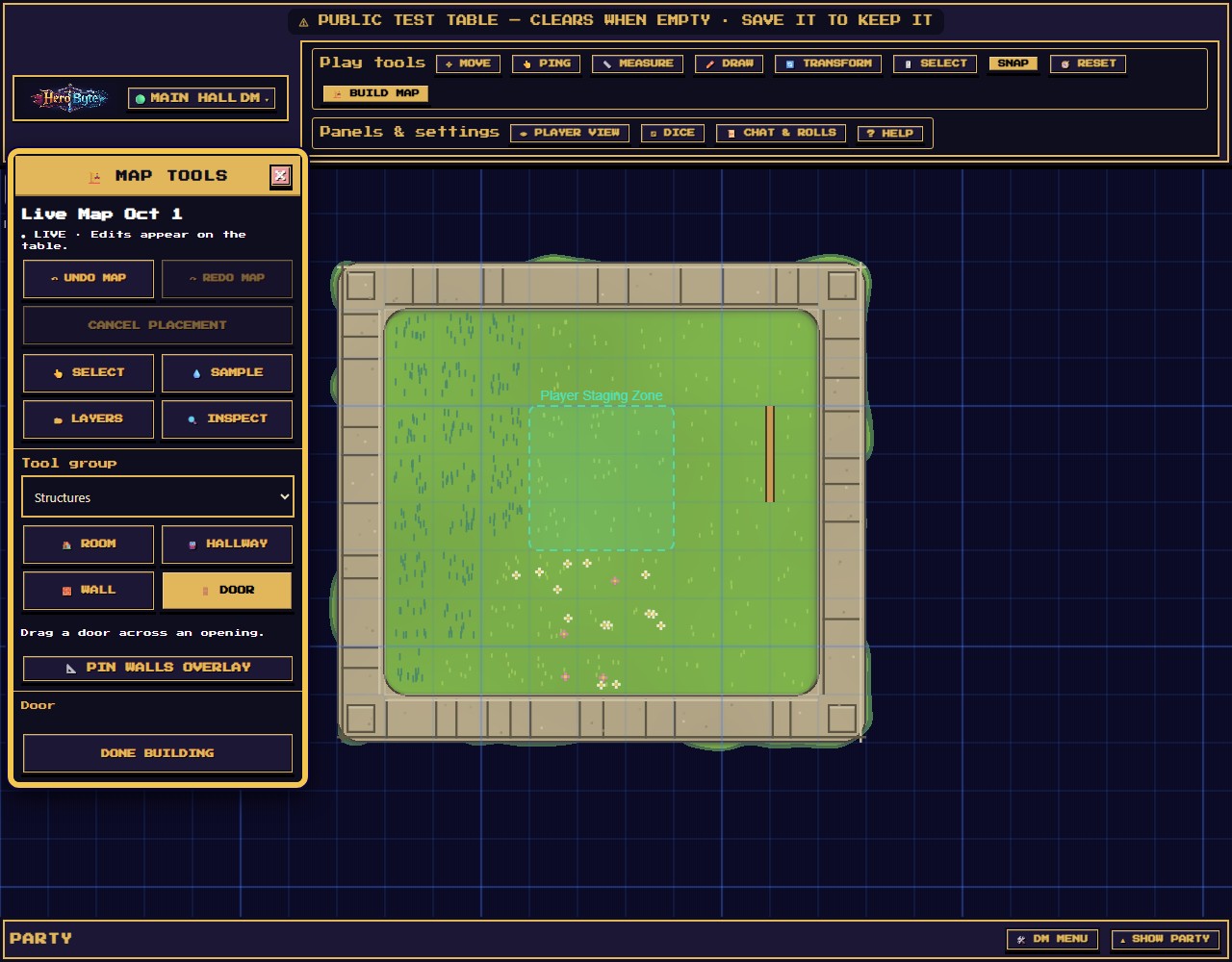
Door states go beyond open/closed — select a door with 👆 Select, open 🔍 Inspect, and the door section offers Closed / Open / Locked / Secret plus a width field:
- Locked — a player who clicks it is told "This door is locked. Only the DM can open it." and hears the latch rattle (only they hear it). Your own click forces it open; Alt-click a door at the table cycles its lock. Under 👁 Player View doors answer you as they would a player, so leave it to force one.
- Secret — invisible to players entirely, dashed seam for you. Alt-click reveals it when the rogue finds it.
At the table, anyone can click a door to swing it — creak and slam included.
💡 Light — torches and night
Open Lighting and set Ambient light from Dark → Daylight: 100% is full daylight; lower values make the map darker and light pools glow. Tap or click the map to place a warm torch pool (fixed radius). On a phone, close the tool sheet to reach the map after adjusting the slider. Layers shows the same ambient value; other layer sliders show Opacity and a percentage.
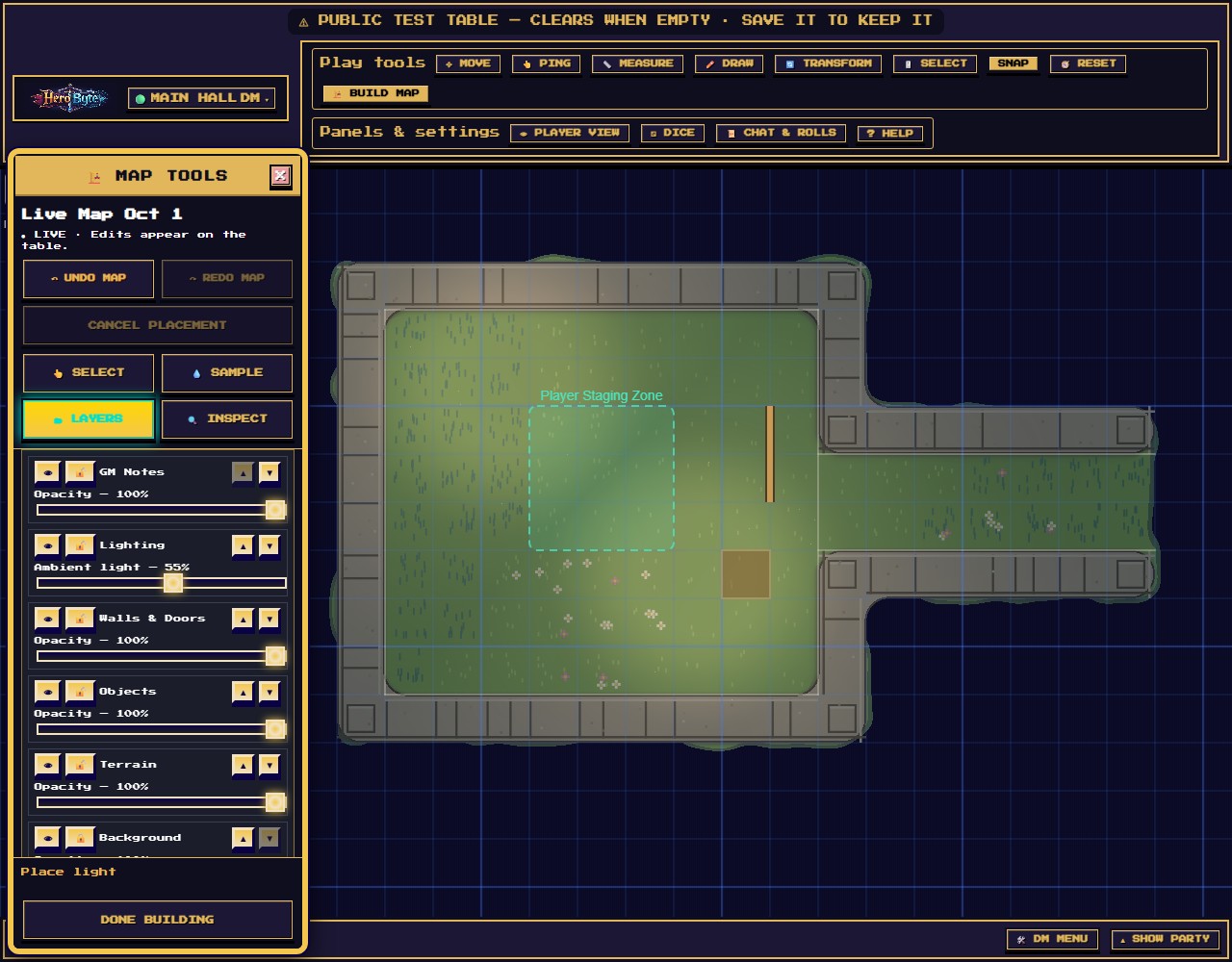
Some placed assets (street lamps, braziers) are emissive and cast their own glow automatically — no Light click needed.
🖌️ Paint and 🧹 Erase — freehand terrain
Paint terrain brushes terrain with a 1 × 1, 3 × 3, or 5 × 5 square measured in map cells. It starts at 1 × 1. The outlined footprint shows the cells under the cursor, or under a held finger; dragging fills the cells crossed between pointer positions. Only complete cells inside the map are affected. Each stroke is one undo. The brush deck is your palette:
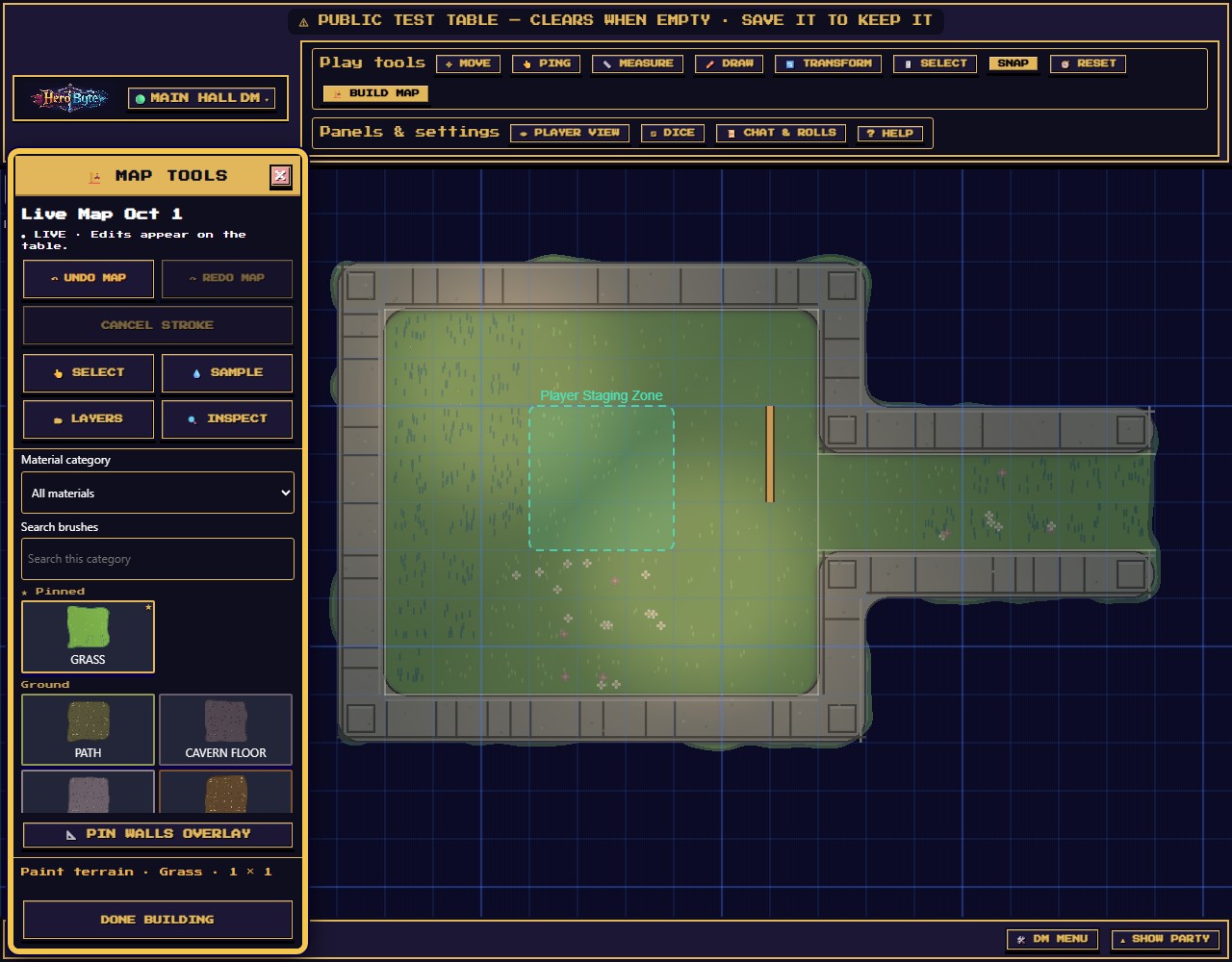
- Eight shelves: Ground (grass, dirt, sand, paths, cavern floor…), Water (including abyss depths and bioluminescence), Molten (lava and cooled crust), Stone (floors, walls, stairs, cliffs, a dais), Wood (plank floors, bridges, timber walls), Roofs, Canopy, and Crystal — 34 families total.
- Desktop Material category narrows the deck; Search brushes filters that category. Names stay visible under the swatches, and Selected material keeps the armed material's name and preview visible while you browse other results. On phone, search covers all material shelves; tapping a shelf clears the search. Pin [material name] pins the armed material to a ★ Pinned shelf; Unpin removes it. Right-clicking a tile also toggles its pin. Your six most recent brushes appear in Recent. Hover a tile for a preview card and a one-line description.
- Terrain is procedural: water finds its depth, cliffs get contact shadows, grass mottles — you paint intent, the renderer does the art.
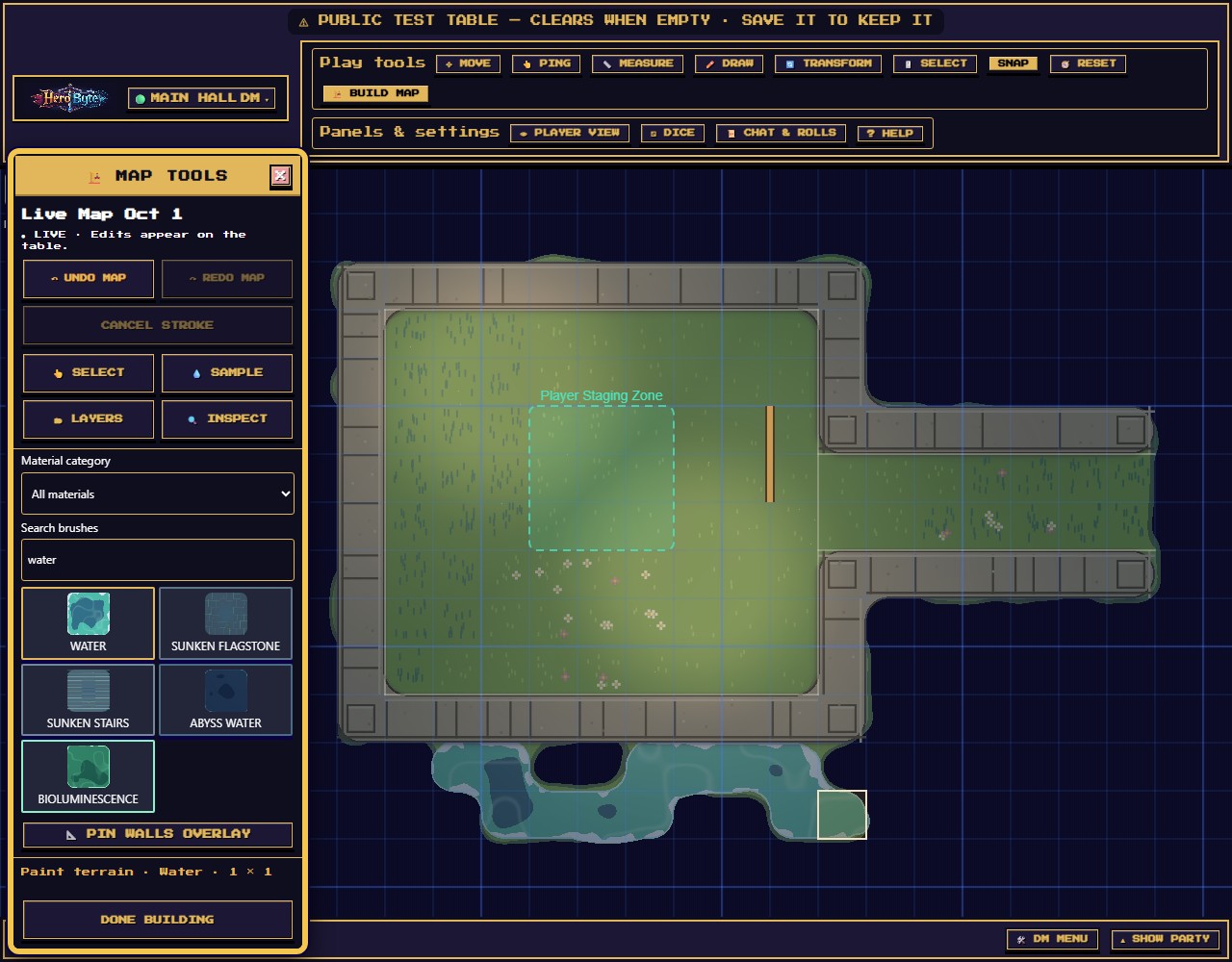
Erase terrain shares the same brush size and clears painted cells in that footprint (one stroke, one undo). It only erases terrain paint; placed objects come off with Select + Inspect → DELETE. Cancel a pending stroke with Escape or Stop before releasing to leave the map unchanged.
📦 Place, 🎲 Scatter, and 📏 Repeat along line — set dressing
Three tools share one asset picker:
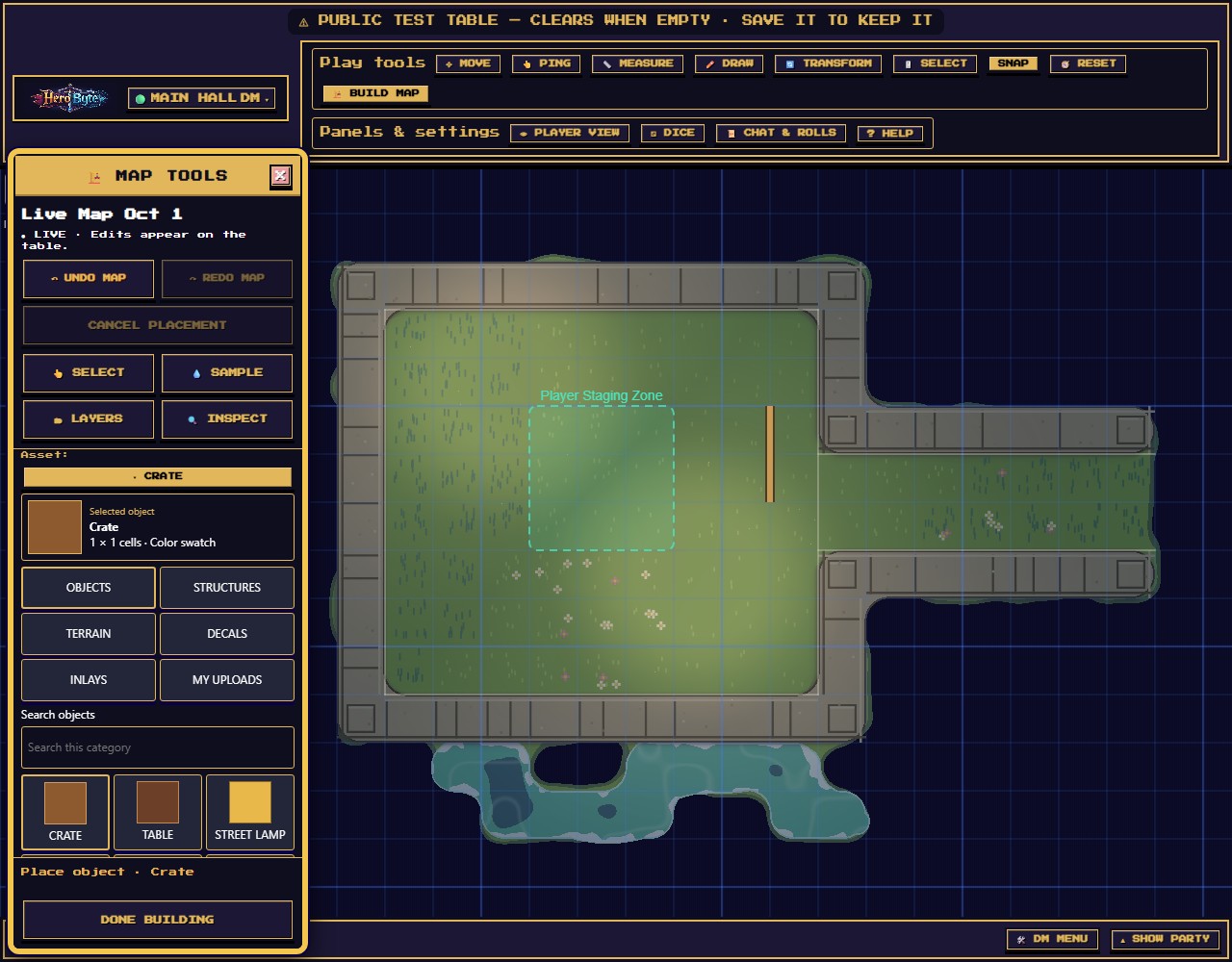
- Objects (crates, tables, boats, standing stones…), Structures, Terrain (stamp a terrain patch as an object), Decals (scorch craters, stains, wax drips), Inlays (medallions, rugs, tracery), and My uploads — ⬆ Upload image turns your own PNG/JPEG/WebP/GIF into a placeable asset.
- Search objects searches names in the open category. Every card names its object. Selected object shows the armed name, footprint and uploaded image or labeled color swatch. Changing the search/category keeps that selection; choosing a card arms it, and placing still takes a separate action on the map.
- Place: click to drop grid-snapped; hold Alt for a free-floating stamp at any angle; R / Shift+R rotates in 15° steps. A ghost previews the exact landing spot.
- Scatter: one click throws a natural-looking cluster of seven — same spot, same scatter, so you can undo and redo identically.
- Repeat along line: drag a line and the asset repeats along it with lived-in jitter and the occasional gap — fences, torch-lined corridors, market stalls.
- Sample: click a paintable material to select it and arm Paint terrain; sample an object or another asset to arm Place object. The tool and selection remain above Done building in the desktop palette. Ctrl/Cmd-click with Place, Scatter, or Paint armed samples while keeping that tool.
Decorate last room / hallway — instant set dressing
In Structures, choose Room or Hallway. After drawing, the named outline marks the last region you placed. Its decoration settings offer a category — Objects, Structures, Terrain, Decals (the same words on the phone) — and a density (Low / Medium / High). Translucent ghosts preview the stamps. Decorate last room or Decorate last hallway commits the fill as one undo step. It consumes that target once; draw a new room or hallway for another fill. This does not decorate an arbitrary selected room. Undoing the placement, moving or hiding its perimeter, changing the grid size or offset, or erasing any part of its floor removes the target outline and disables decoration. Repainting the floor, adding doors and changing layer presentation keep the target. Unavailable placement layers and work still in progress also disable the action and explain why.
🏰 Generate — the dungeon generator
In Generate, arm Generate area and drag a region (at least 20×20 cells — zoom out if needed); the panel shows its Region size. Pick a theme (🪨 Stone / 🪵 Wood) and density, and press 🎲 Generate in this area:
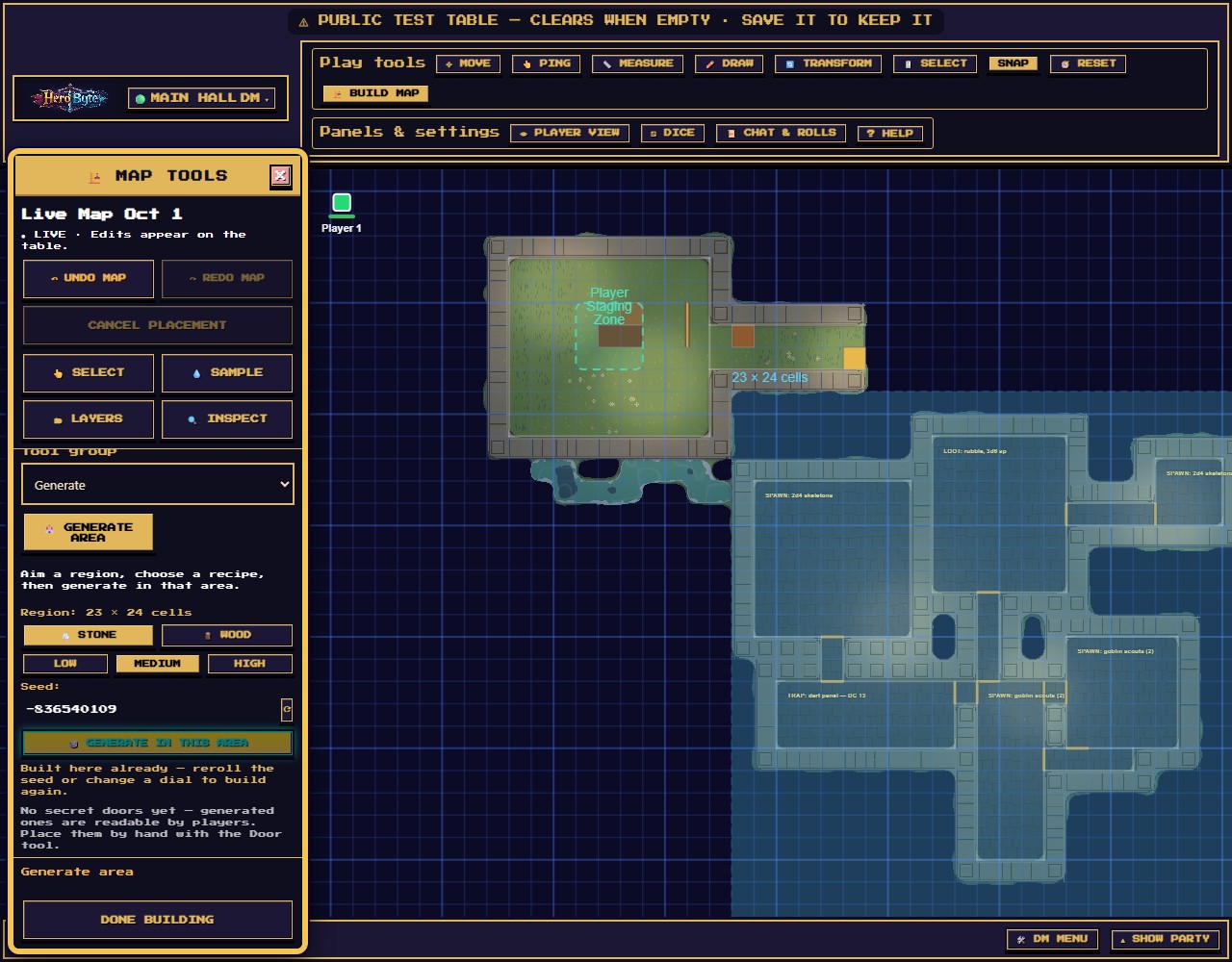
- The server lays rooms, corridors, wall bands, doors (authored closed), lights, and scatter — and lands it all as one undo step. Don't like it? Undo, ⟳ re-roll the seed, generate again. The same seed always builds the same dungeon.
- Generated dungeons contain no secret doors, deliberately — a generated "secret" could be reverse-engineered from the data players receive. Add secrets by hand with the Door tool where only you know to look.
👆 Select and 🔍 Inspect — precision edits
Select clicks the topmost element under the cursor — everything you can place: objects, floor tiles, shapes, walls, doors, lights, text and ropes and curves. Inspect then edits it numerically: X/Y, scale, rotation, layer, a Hidden checkbox, DELETE — and the door state controls.
Walls, doors and ropes and curves are thin, and lights are a single point, so those are caught by proximity: click within half a cell and the dashed outline traces what you actually got. It follows the wall itself rather than boxing it, so you can see you have the right one before you delete it. Where a door crosses a wall the door wins, since that is what you were almost certainly aiming at. A light's ring is drawn at that same half-cell — worth knowing, because a light with the Lighting layer at full day draws nothing else at all.
Two things Select still cannot reach. A room's floor is terrain, not an element, so it comes off with 🧹 Erase. And a room's walls are separate pieces — deleting one cuts a gap rather than removing the room, which is what you want when you are opening a doorway.
〰️ Rope / curve — rope, chain, ribbon, filigree
Drag two anchors: Rope and Chain sag naturally; Ribbon and Filigree run straight. Dockside rigging, chained gates, ceremonial bunting.
🗂 Layers
Six layers, top to bottom: GM Notes, Lighting, Walls & Doors, Objects, Terrain, Background — each with visibility, lock, reorder, and an opacity slider (remember: Lighting's opacity is the ambient light). Background ships locked so you can't paint under the floor by accident. GM Notes never reach players.
The quick wheel
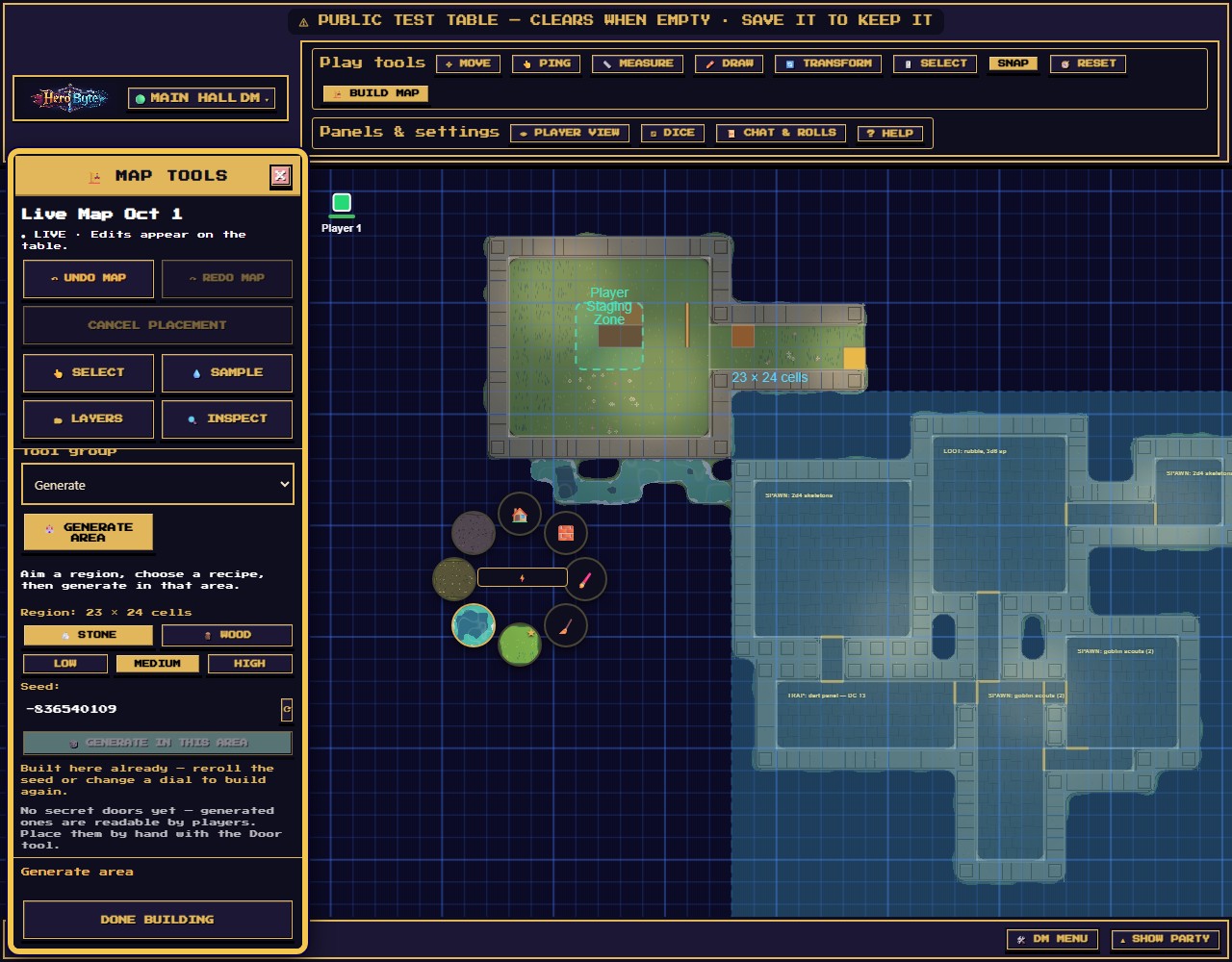
Right-click anywhere on the canvas (while editing) for the radial quick wheel: Room, Wall, Paint, and Erase on top, plus your four go-to brushes (pinned and recent favorites fill the slots). Escape or click away to dismiss.
What players see (and don't)
While you build, players receive every committed edit instantly — terrain, doors, lighting, the lot. They never receive:
- Secret doors (stripped server-side, not just hidden),
- the GM Notes layer,
- anything Hidden or on a hidden layer,
- the walls overlay (walls themselves are invisible; they act through fog and movement).
Flip on 👁 PLAYER VIEW any time to see the table through their eyes — and keep building while you're in it.
Cheat sheet
| Shortcut | Effect |
|---|---|
| Esc | Cancel drag → close wheel → leave map-edit |
| Ctrl/Cmd+Z / Ctrl/Cmd+Y | Undo / redo map edits |
| Right-click | Quick wheel |
| R / Shift+R | Rotate a Place free stamp ±15° |
| Alt + click (Place) | Free stamp, unsnapped, rotated |
| Ctrl/Cmd + click | Eyedropper — sample asset or terrain |
| Alt + click a door | Cycle lock / reveal secret (at the table) |
On a phone or tablet
On a touch layout, map editing replaces the bottom dock. Tool opens the settings sheet; To the map closes it so you can aim on the canvas.
Getting in: DM (dock slot five) → 🏗️ Edit the live map. The DM screen closes itself on the way — the mode needs the whole canvas, so it will not sit behind the menu you just used.
The dock becomes five slots:
| Slot | What it does |
|---|---|
| ✕ Done | Leaves the mode. The map stays live. |
| ⚒ Tool | Opens the sheet: ▶ Start live map before you have one, then Tool group, 👆 Select, that tool's own dials, and ◇ Reset view. Picking a tool with no dials closes the sheet, because you picked it in order to use it; a tool that has dials leaves it open so you can set them. |
| ↶ Undo / ↷ Redo | The same map-edit history the desktop palette drives. Both stay greyed until the map is live. |
| Stop | Abandons the drag in progress. |
Every tool is here. Terrain contains Paint terrain and Erase terrain; Structures has Room, Hallway, Wall, and Door; Objects has Place object, Scatter objects, Repeat along line, and Rope / curve; Lighting has Place light; Generate has Generate area. The shorter names used below refer to these same tools. Select, Sample, and Layers stay above the scrolling settings. Select and Sample use a single tap; the authoring tools use press, move, lift. Generate's drag aims a region, then its button builds it.
Painting. Both Paint terrain and Erase terrain keep the sheet open so you can choose 1 × 1, 3 × 3, or 5 × 5 cells. Paint also offers a material shelf and picker. Choose ▶ To the map, then press, drag and lift; a tap affects one square footprint. The tool, material and size remain visible above the closed dock. Erase can remove a room's floor as well as freehand paint.
The picker is a deck, and it remembers. Two extra shelves appear once there is something to remember: ★ for pinned materials and Recent for the last six used. They share the desktop palette's memory in this browser; pins do not transfer between devices. The named Pin / Unpin button changes the armed material's pin on either layout. Desktop also supports right-clicking a swatch.
Placing. 📦 Place and 🎲 Scatter ask what to drop, so their sheet stays open over a picker: category chips, then that category's assets. 💡 Light asks nothing and closes the sheet.
Here they behave differently from a mouse, and it is worth knowing before your first drop. On a desktop these three drop the moment you click. On a touch device your press only AIMS — the translucent ghost appears under your finger and follows it while you slide — and the drop happens when you lift. There is no hover on a phone, so a tap that dropped immediately would be dropping blind, which matters most for Scatter: its cluster is seeded from the exact point, so "roughly there" is a different handful of objects.
That also means you can change your mind. Slide to a better spot before lifting, or reach for a second finger and the drop is abandoned along with everything else in flight.
Free stamp, and turning it. By default Place drops a grid tile, snapped to the lattice. Drop as → Free stamp puts it wherever your finger is instead, and a Rotation row appears with ↺ −15° and ↻ +15°. (On a desktop these are Alt and R / Shift+R, and still are — the buttons and the keys write the same setting, so what is armed is visible on both.) Scatter uses seeded angles and has neither Drop as nor a rotation row.
💧 Sample is the eyedropper. Tap it, then tap a paintable material to arm Paint terrain, or an object or another asset to arm Place object. The closed dock names the resulting tool and selection. Tapping empty space keeps Sample armed and places nothing. Desktop Ctrl/Cmd-click is different: it keeps Place, Scatter or Paint armed while sampling.
My uploads works here too. The picker's last shelf is your own art: Upload art takes a photo or image straight from the phone's camera roll, and the moment it lands it is armed — tap the map to place it. Desktop and phone layouts share the shelf within the same browser; the local list does not follow you to another device. Pasting a link works only for art already on this table (an upload's own address); a link to somewhere else on the web cannot be placed, and the field says so rather than failing quietly.
Editing what you picked. Selection shows a compact Properties summary with the element's type, name and layer. Open Properties to change layer, player visibility and door state/width. Position and scale reveals position in pixels, rotation in degrees and scale multipliers; phone turn and resize buttons are here too. All these fields stay staged until Save changes. Saving both general properties and door settings uses two operations and may need two Undo map edit actions. Success appears only after the server confirms each operation. If one fails, the form names what saved and retains the unsaved part for retry. Unconfirmed completion requires Refresh saved values, then I've checked the saved values, before saving the remaining draft. Selecting something else offers Save changes, Discard changes or Keep editing; closing the panel or changing layout preserves the draft.
To position a piece precisely on phone or desktop, open Properties → Position and scale and edit X (px) or Y (px), then choose Save changes.
🗂 Layers. In the tool sheet, beside Select. Each layer gets a show/hide eye, a lock, and an opacity slider — and the Lighting layer's opacity is the ambient light: 1 is broad day, and torch pools only start to glow as you bring it down. That is how you make it night from a tablet. Reordering the stack stays on the desktop.
Deleting on a phone. Tap ⚒ Tool, tap 👆 SELECT, then tap the thing on the map — the sheet names what you picked — and tap 🗑 DELETE. Select reaches everything you can place: objects, floor tiles, shapes, walls, doors, lights, text and ropes and curves. Walls and the like are thin, so you get a half-cell of slack — tap near one and it will take it, and the dashed outline traces what you actually caught before you commit to deleting it.
On a phone the sheet covers the map, so Select takes two extra taps: arm it, close the sheet with ✕, tap the thing, then reopen ⚒ Tool — your pick is still there, with Properties and Delete under it. On a tablet there is room for both at once and you can skip that.
Two things it cannot do. A room's floor is terrain, not an element, so it comes off with 🧹 Erase rather than Select — which is now a tool you have on the phone too. And a room's walls are separate pieces, so deleting one cuts a gap rather than removing the room — which is exactly what you want when you are opening a doorway.
Two things behave differently from a mouse, and both are worth knowing before your first drag:
- Lifting your finger commits. There is no Escape key, which is what Stop is for — press it with a second finger while the first is still down, and the release lands nothing.
- A second finger always means the camera. Reach for a pinch mid-drag and the drag is discarded, not committed — you wanted to zoom, not to stamp a half-built room on the table.
Saving… appears above the dock while an edit is on its way to the server. Terrain strokes queue behind that edit. Other authoring tools can reject a gesture while saving and show “Still saving the last change”; wait for saving to finish before placing the next object or structure.
Start live map is the same button as on desktop and creates the same document, so a map begun on a tablet opens on a laptop and the other way round. Rotating the device, or resizing a window across the phone/desktop boundary, keeps the mode armed and simply swaps which palette you get.