Player Guide
You've joined a table — here's everything you can do at it.
The table at a glance
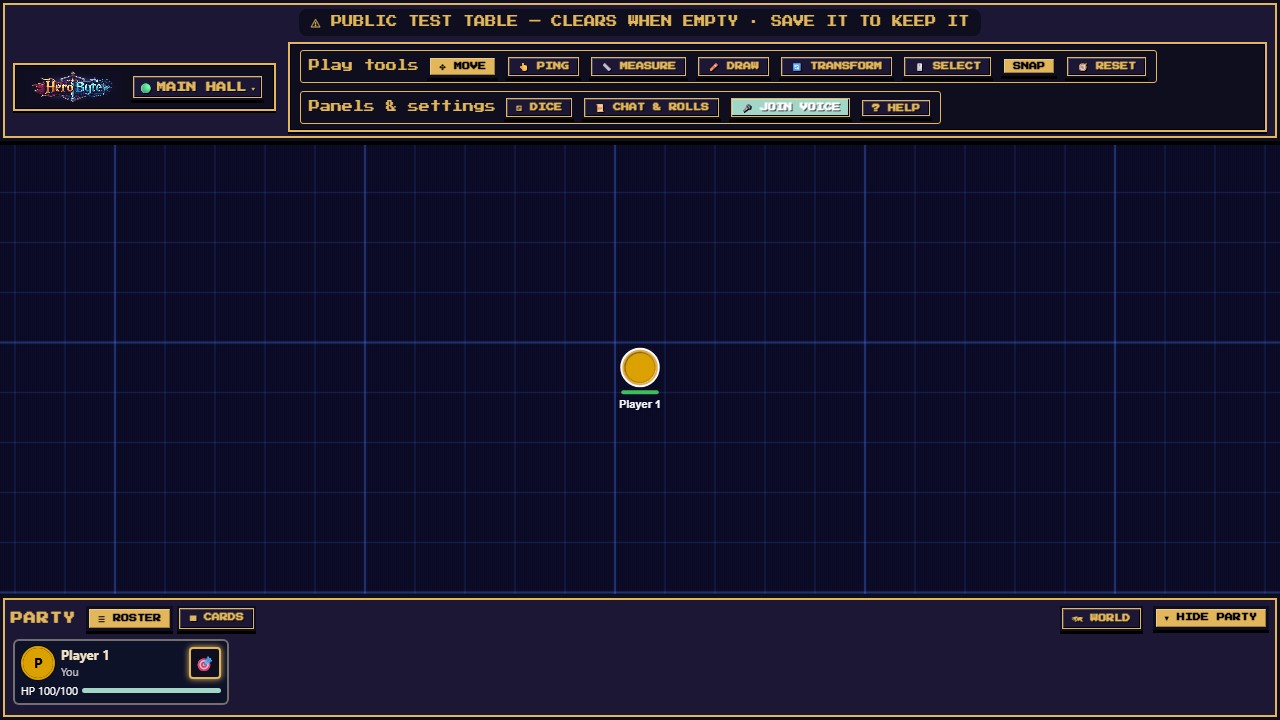
- Top toolbar — tools and toggles. Hover any button for a tooltip. Tools are exclusive: picking one turns the previous one off, and clicking the active tool turns it off again.
- Map canvas — the shared battlemap. Everything here syncs live to every player.
- Party (bottom) — one compact row for every character at the table: the party, the DM's, and any visible NPCs. Each row shows a portrait, the name, HP, any conditions and, while that character's token is on the map, 🎯 (focus the map on it; — when it isn't); a row reads You for your own characters, and another player's character named differently from their seat also shows the seat's name, so you can tell whose it is. Select a row for that character's full card; ▦ CARDS shows every card at once and ☰ ROSTER goes back to the rows; ▼ HIDE PARTY folds the panel down to its bar. The bar also holds 🗺 WORLD and, when your DM allows it, 📦 PROPS, so they never sit on top of a card.
- Table button (top left) — the table's name and a dot for your connection to the server (🟢 online, 🔴 offline); a DM also sees DM on it, and a player sees no role word (your role is in the menu). It opens the Table menu.
The Table menu
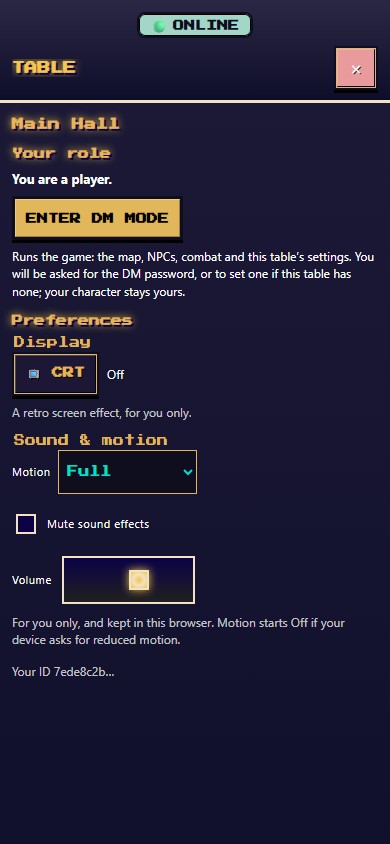
The Table button opens a small menu about the table and about you, not about one character:
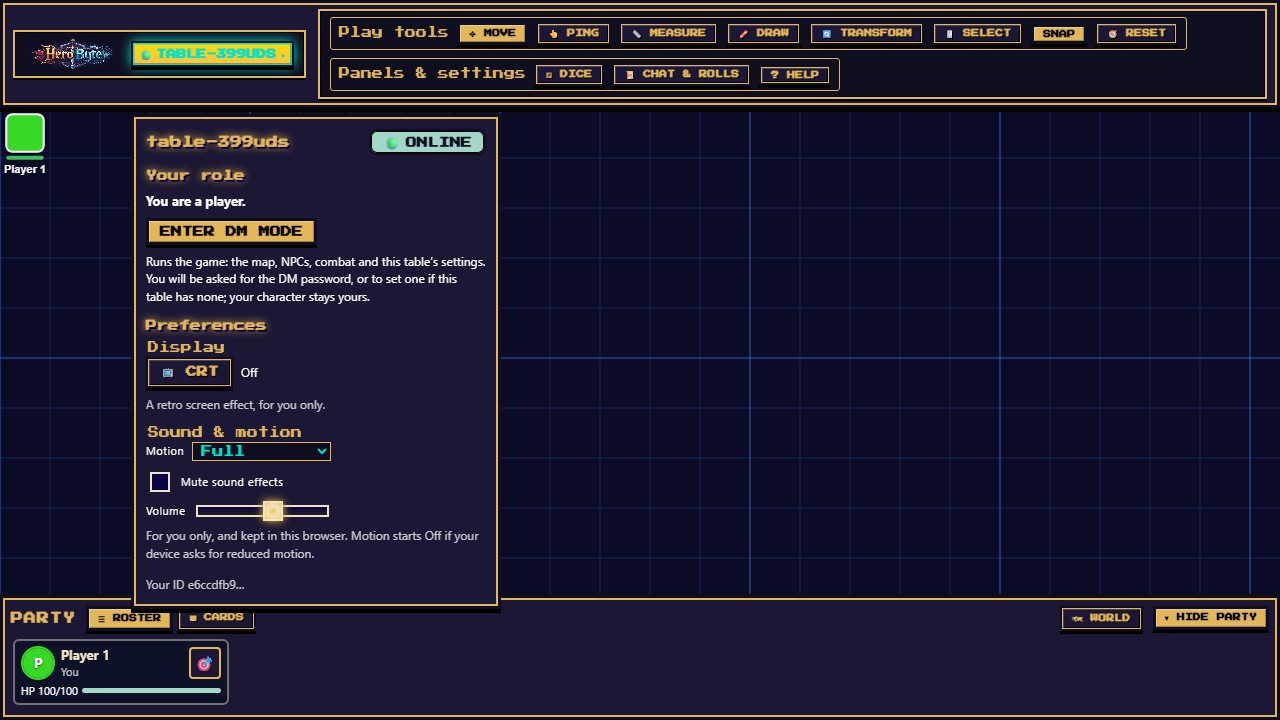
- Your role — You are a player, with ENTER DM MODE, which asks for the table's DM password (see Becoming the DM). When you are the DM it says so and offers LEAVE DM MODE and ⚙️ Table settings….
- Preferences — yours alone and remembered in this browser: Display → 📺 CRT, and Sound & motion (see Look & feel).
- Your ID — the start of your seat's identifier, which the header used to print as “UID”.
On a phone the same menu is a screen: ⚒ TOOLS → Table.
Moving around the map
| Action | How |
|---|---|
| Pan | Drag empty map space (with no tool active), or middle-mouse drag (works even with a tool active) |
| Zoom | Mouse wheel — zooms toward your cursor (0.1× to 8×) |
| Reset the camera | 🧭 RESET (RESET VIEW on a phone) — moves the view back to the map's top-left corner (the origin, 0, 0) at 1× zoom (100%). Not the middle of the map, and not always where you started |
| Jump to your token | 🎯 on your row in the Party — with two characters, each row focuses its own token |
| Touch | One finger pans, two fingers pinch-zoom |
Your character card
The Party lists characters, not players: if you run two, you have two rows, and each keeps its own HP, conditions, token and 🎯. Select your row (its portrait or name) and your card opens beside the rows — your character sheet in miniature. ✕ or Esc closes it; selecting another row switches to that character.
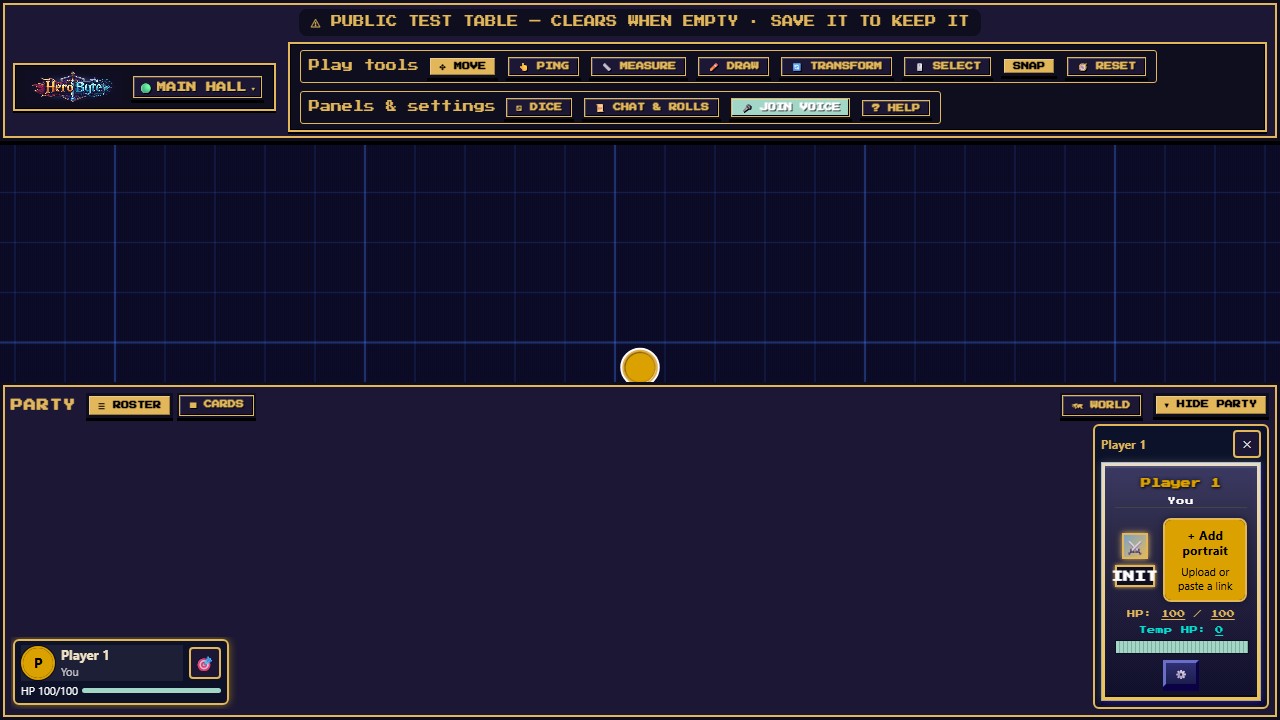
- Name — click it to edit inline.
- Portrait — open ⚙️ settings and ⬆ UPLOAD IMAGE a portrait straight from your device — on a phone, that's your camera roll. (Clicking the + Add portrait square opens the same settings, where a pasted image URL also works.) On a computer, when you talk on voice, your portrait glows and swells.
- HP — click either number in
HP: 100 / 100to type a new value (Enter or click away to save), or drag along the HP bar to scrub it. The bar shifts color as you drop: green, amber, red. - Temp HP — a separate pool absorbed before regular HP; click to edit (on a phone, tap the number on your row in ◉ PARTY).
- ⚔️ — centres the map on this character's token; it also wears up to three condition medallions (covered below). INIT — initiative (covered below).
- 🎤 / 🔇 — once you are in the voice call, your mic button: 🎤 while you are live (press to mute), red 🔇 while you are muted (press to unmute) (covered below).
- ⚙️ — opens your full settings window.
The settings window (⚙️)
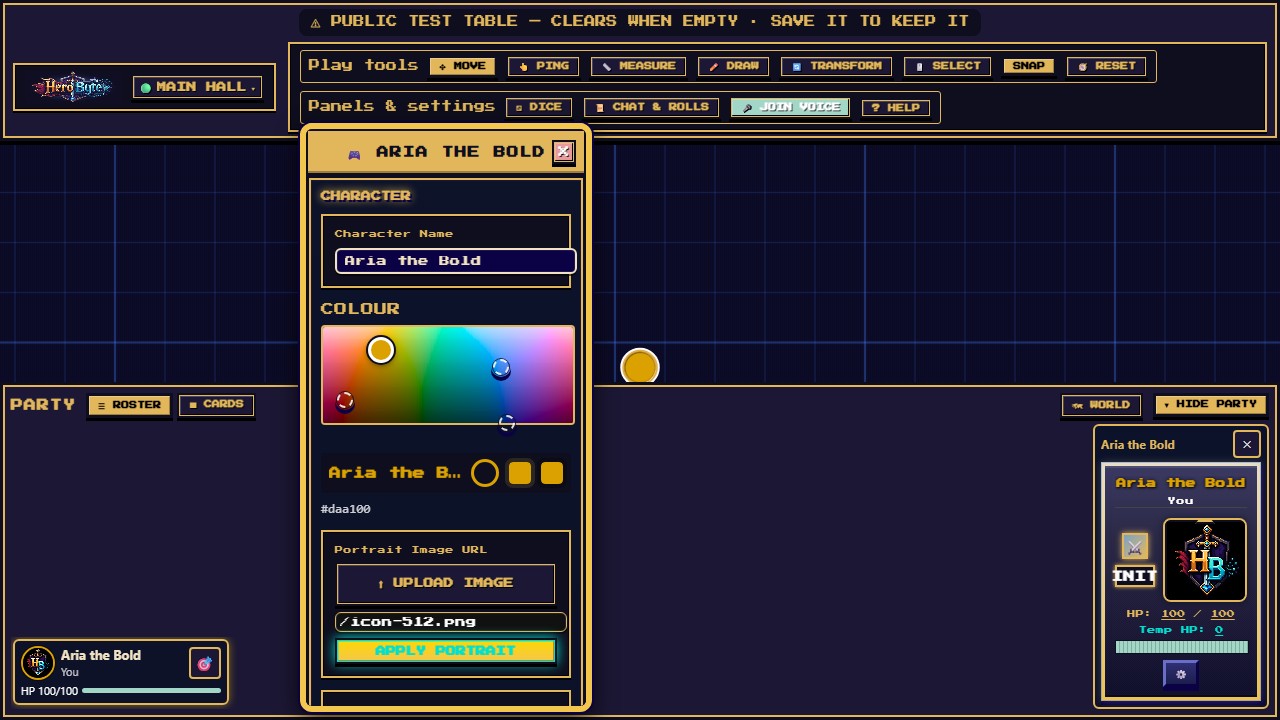
One draggable window per character, in two halves — what the character is, and how its token behaves:
Character
- Character Name and Portrait: the portrait is the picture on your card. Two ways to set it:
- ⬆ UPLOAD IMAGE sends a picture from your device to the table (camera roll on a phone): PNG, JPEG, GIF or WebP, up to 5 MB each. The table's image storage has a limit too ("The table's asset storage is full."), and on the Main Hall uploaded images are cleared once it has been empty for an hour.
- Paste a link and press Apply Portrait. Links show only from Imgur (
i.imgur.com) and Discord (media.discordapp.net); animgur.compage or album link is turned into its image for you. A link from any other site shows nothing: download the picture and upload it instead.
Token picture… (once your character has a token on the map): the picture on your map token, separate from the portrait. It opens the Art & frame window on its Picture tab (full screen on a phone, from ⚙️ EDIT):
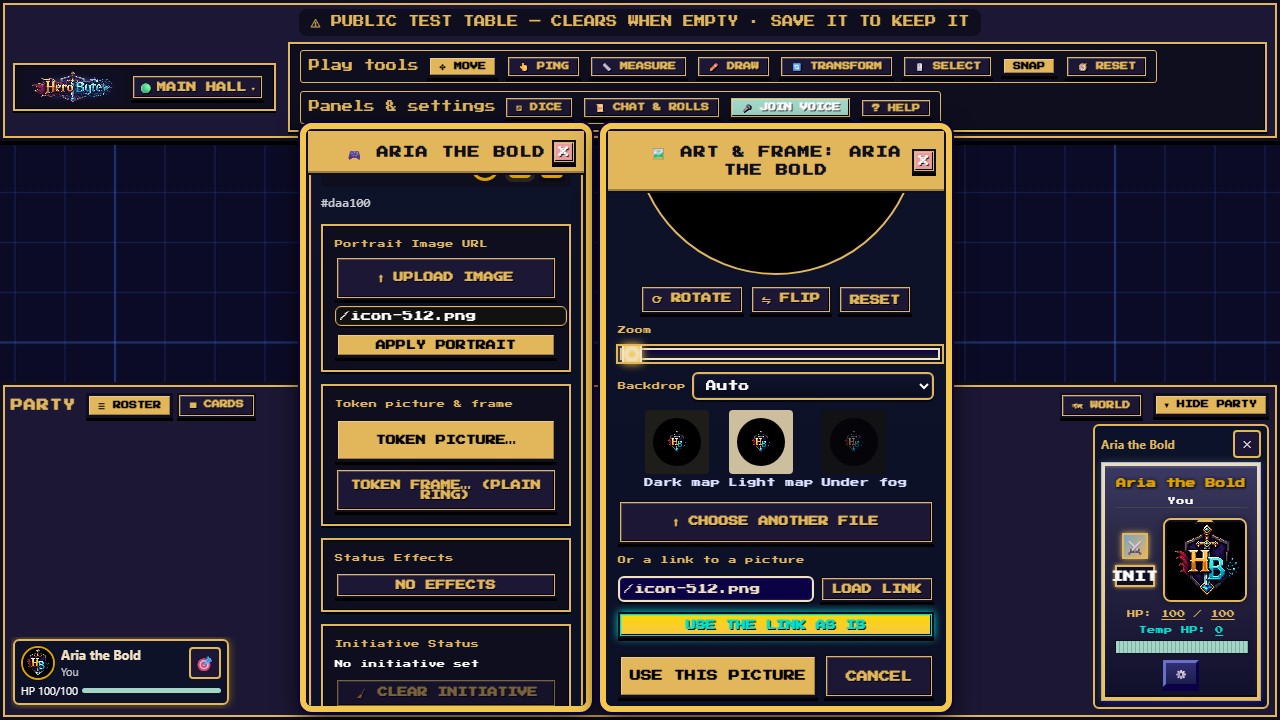
The Art & frame window scrolled to its zoom and backdrop controls: round previews on a dark map, a light map and fog, the offer to use the link as is, and Use this picture and Cancel at its foot; beside it the settings window's Token picture and Token frame buttons - Bring a picture in: ⬆ Choose a file, drop one on the window, paste one (Ctrl+V, ⌘V on a Mac), or give a link and press Load link. Links work from Imgur (
i.imgur.com) and Discord (media.discordapp.net), as for the portrait, and from pictures already on this HeroByte server; a link that loads nothing says so. - Frame it inside your token's shape: the frame's shape while the Frame tab has a frame picked (a circle, or the shape picked there), at first the one your token wears (everything outside the shape is hidden on the map; with Grow in, or a heavy Grow out, the frame also covers its edge), the old rounded square while it has none. Drag to move it, zoom with the wheel, the Zoom slider or a pinch, and ⟳ Rotate a quarter turn or ⇋ Flip it. Reset puts it back. With the picture selected, arrow keys nudge it and + / − zoom.
- Backdrop fills whatever the picture leaves empty, such as transparent art or a picture zoomed out to fit: Auto takes the average colour of the solid pixels in the outermost ring, within a quarter of the way in, that has a real number of them (a photo's own edge, or for cut-out art the colour where the figure comes nearest the edge; dark parchment only when nothing solid is near the edge), or choose Solid colour, a Gradient, or None to keep it transparent.
- The previews show the token on a dark map, a light map and under fog. Use this picture saves it to the table and sets it (it reads Use picture + frame when you also picked another frame on the Frame tab, or Use picture, no frame when you picked No frame, and that is set together with the picture); if the picture cannot be saved, the window says why and nothing is set. Cancel, ✕ or Esc leave your token as it was, frame included, even while it is saving (once Uploading… has started, the picture still reaches the table's storage; if nothing uses it, it stops counting against the table's storage limit after about 15 minutes, for up to 5 MB of such pictures). While it saves, the framing holds still. The saved picture is a 512-pixel square (768 for a Huge or Gargantuan token at the time you save it), and it is an upload like any other: the table's storage limit applies, and on the Main Hall it is cleared with the other uploads. To change the framing later, choose the picture again.
- For a picture that came from a link, Use the link as is sets the link itself (an
imgur.compage link becomes its image link), uncropped and with nothing saved to the table, and with it a frame you picked on the Frame tab: the way out when the table's storage is full or the site (Discord, for one) does not let HeroByte copy its pictures. Editing the link field takes back an offer for a link that failed.
Clear picture goes back to your token's colour: the colour filling its frame's shape, or the old rounded square on a token with no frame.
- Bring a picture in: ⬆ Choose a file, drop one on the window, paste one (Ctrl+V, ⌘V on a Mac), or give a link and press Load link. Links work from Imgur (
- Token frame… (under Token picture…, once your character has a token): the ring drawn round your token on the map. Every new token starts with a Plain ring in your colour; tokens from before frames keep their old rounded square until you pick one. The button names the frame your token's ring was picked from. It opens the same window on its Frame tab (full screen on a phone, from ⚙️ EDIT):
- Shape: Circle, Rounded (a square with round corners), Square, Hexagon, Octagon or Shield, each fitted to the token's square. At a corner, stones, planks and plates end rather than folding round it, and a Rounded frame has a joint in the middle of each rounded corner; the shield's sides are curves, and they bend round those as round a circle. Picking another material keeps the shape. Turn a framed token and its picture turns inside the frame, which stays upright: where the window reaches past the turned square picture (a Square, Rounded or Shield frame that is not a heavy Grow in, or an Octagon grown out lightly), its corners show your token's colour.
- A shelf of frames by theme: Plain (plain ring, chamfered ring, shadow ring), Stone (red brick, castle stone, cave rubble, cracked stone, sandstone), Metal (blackened iron, riveted iron, rusted plate, steel, welded steel) and Wood (oak planks). Stones, planks and plates are built for your token's size, so they narrow toward the token's middle on every shape, and every token on the table is lit by the same light from the top left, wherever it stands and however it is turned (unless it is stretched). Stretching a framed token in one direction with the transform handles stretches its frame into an oval too, and the oval turns with the token, its light with it.
- Weight: a slider, or Skinny, Regular, Bold and Slab. At the heaviest weights stones, planks and plates are laid in two rows: from just under Slab with Grow in on a Medium or smaller token (three rows at the last two steps of the slider), and only near the top of the slider with Grow out. Bigger tokens need a heavier weight: a Large token's frame doubles with Grow out only at the top three steps of the slider, a Huge token's keeps one row with Grow out, and a Gargantuan's always keeps one. Welded steel's plates double only above Slab with Grow in. These rows are the same on every shape. Large and bigger tokens wear their frame thinner for their size (a Gargantuan's at a little over half).
- Grow in keeps the frame inside your token's square, eating into the picture's edge; Grow out lets the frame stand outside the square, up to 15% of the token's width on each side, casting a soft shadow on the map: up to just under Bold it keeps the whole picture (Large and bigger tokens through Bold, a Gargantuan through Slab); a heavier frame also reaches in over the picture's edge.
- Facing notch: an arrow gem at the top of the frame, pointing up, in your colour or one you pick; with it on, the colour choice below is offered for the gem even on a material with its own colours. Tokens have no facing yet, so it points up, unless a stretched token is turned, when the whole frame turns with it.
- Your colour tints the frames that take a colour (Plain ring and Chamfered ring), and follows you when you change colour; or pick a colour of your own. Every other frame has its own colours, and the tab says so instead. A frame that glows (Cracked stone) adds Glow: your colour (your character's colour, whatever colour the frame has) or a glow colour of your own, and Glow strength.
- The previews show the frame on a dark map, a light map and under fog, at card and token size. Use this frame sets it for everyone at the table; No frame, then Use no frame, takes it off; Cancel, ✕ or Esc change nothing. Changing the frame never touches your picture. With a picture loaded on the Picture tab and not yet saved, the button reads Use frame + picture (Use picture, no frame after No frame, or Use this picture when the frame is the one your token wears): it saves the picture and sets the frame with it, and if the picture cannot be saved it turns to the Picture tab to say why, with nothing set. While a picture is saving the button shows Baking… or Uploading…, and a frame picked meanwhile goes with the picture. A framed token takes its frame's shape (stretched with it if you stretch the token): its selection outline follows the frame's outer edge, with Grow out you can grab it by the frame too, and a click in its square outside the shape (in the square's corners round a hexagon, say) does not take it. Pasting or dropping a picture while the Frame tab is showing turns to the Picture tab.
- Colour — your character's colour: it fills your token when it has no picture and tints its frame when the frame takes your colour; on a computer it colours your name on your card, your card's portrait while it has none, the ring on your Party row and your speaking glow; and it colours your pings, your chat and roll names and, on your own screen, everything you select. Where your colour would not read, names, ping labels and the glow use a lighter or darker shade of it. With two characters, pings, chat and roll names and selections use your first character's colour; each character's card and Party row keep its own. Others still see your colour on your card, your Party row and your chat and roll names while your token is out of their sight; a ping reaches other players only where they can see the spot (the DM sees every ping). Drag the handle across the colour window (hue runs left to right, light at the top) and let go to keep it, or tap one of the three dashed rings for a free colour in one go. No two players share a colour (a player's pick is checked whenever it changes; the DM's picks and table restores are not): the striped patches are the space around other players' colours, a drag or a tap into one stops at its nearest free edge and says whose it is (hover over a patch to see whose without picking), and the patches shrink as more players join. Your own other characters show as small squares and may share your colour; a new character starts in your colour. Arrow keys move the handle a step (Shift for five) and the colour is kept when you stop. If someone took the colour a moment before you, the table moves yours to the nearest free one and tells you. The DM's colour has no patches and blocks no one. On a phone it is in the row's ⚙️ EDIT sheet.
- Status Effects — a checklist of 38 conditions (Prone, Poisoned, Blessed, Rage, Concentration…). They belong to this character only: your other character's row, card and token do not wear them. Up to three show as emoji medallions on the portrait and token; the rest roll up into a
+Nbubble. - Initiative Status — this character's current initiative, with a 🧹 CLEAR INITIATIVE reset (on a phone too: ⚙️ EDIT on your row).
- Character file → Save character / Load character… — download this character (its name, HP, portrait, token and its frame, position and status effects, plus your drawings if you have any) as a JSON file and restore it later — handy insurance between sessions, or for moving your character to another table. Drawings belong to you rather than to one character, so loading a file that holds drawings replaces the drawings you have on the map with the file's, and a file with none leaves yours alone. It is one character's file and never the table: a table backup (the DM's) and an editable map are different files, and each picker tells you what it was handed if you pick the wrong kind. On a phone the same two buttons are in the row's ⚙️ EDIT sheet.
- Multiple Characters → ➕ ADD CHARACTER — run a second PC (or a familiar): each character gets its own row, card, token, HP, and initiative. A player can hold up to 5 characters at a table (the DM's are not counted); at 5, delete one to add another. 🗑️ Delete this character removes the one this window belongs to.
Token settings
- Token Size — Tiny, Small, Medium, Large, Huge, or Gargantuan (half a cell up to 3 cells). Your DM can resize it too. While it is locked, no one can resize it. Sight radius, movement speed and the token lock are the DM's to set, so they appear only in the DM's window.
Tokens
Your token is your presence on the map:
- Nameplate and HP bar — every token wears its character's name, and a thin health bar when you're allowed the numbers (your party always; monsters at the DM's discretion — a red dot means bloodied). Names hold their size at any zoom.
- Move — drag it. With SNAP on (top toolbar) it clicks to grid cells; others receive its new position when you release it. Or step it from the keyboard: WASD / arrows move it one cell (Q E Z C for the diagonals; hold a key to walk). With nothing selected the keys move your own token, as long as you run just the one character (with a second, pick the one you mean first) — except while you are typing, and ↑/↓ page a panel you last clicked into or scrolled, such as Chat & Rolls (WASD and ←/→ still walk). With 🖱️ SELECT or 🔄 TRANSFORM armed the keys move only the piece you have picked (nothing picked, nothing moves); ✏️ Draw, the grid-alignment wizard and atlas-link take the keys entirely. To move something else you may move, pick it with SELECT or TRANSFORM first.
- Recolor — double-click your token (on a phone, double-tap it) for a new random colour, always one no other player is using; to choose one, use Colour in your settings window. A token with a picture hides its colour on the map, but your colour still marks you everywhere else (see Colour).
- Select — click it. Shift-click adds to a selection, Ctrl/Cmd-click toggles. With the 🖱️ SELECT tool you can drag a marquee to grab several tokens and drawings at once, then drag any one of them to move the whole group.
- Resize / rotate — with the 🔄 TRANSFORM tool, click a token for Photoshop-style handles: 8 scale handles plus a rotation handle above (rotation snaps to 45°; hold Ctrl/Cmd to rotate freely). The center crosshair drags the object.
- Delete — select and press Delete (you can only delete what you own; a confirm dialog lists the exact casualties). That includes your own props when the DM allows player props; the DM can delete any prop. A phone has no Delete key: Tools → Draw → Erase drawings or Undo drawing for your drawings; your own token cannot be deleted on a phone (ask the DM to remove it, or use a computer).
- Locked tokens (🔒 badge) were locked by the DM — DMs use this to pin scenery and important pieces. No one can move or delete them, the DM included, until the DM unlocks them.
- Ping — double-click (or double-tap) empty map space to drop a quick ping, in any tool mode. A player's ping reaches the DM and the players who can see that spot; a DM's ping reaches everyone.
You can only move your own tokens. The DM can move everyone's.
Table chat and whispers
Open 📜 Chat & Rolls → Chat, or Chat in the phone dock. Choose Everyone for table talk or Whisper to [name] for a private message, then press SEND or Enter. Whispers go to the sender's and recipient's table seats; being the DM does not grant access to other players' whispers. A connected seat is protected against another person claiming it. After a seat is fully offline and its session-token grace expires, someone with the table password can claim it and read whispers retained for that seat. This is the same offline-identity limit as private rolls.
If the selected recipient is removed from the table, your draft stays in the box and sending is blocked. Choose a recipient again or explicitly choose Everyone before sending, even if the removed seat returns. New whispers keep the recipient's name as it was when sent; older messages fall back to the current roster name, or “unknown” when that name is unavailable. Closing the panel or switching to Rolls clears an unsent draft.
Dice
Press ⚂ Dice for the roller and 📜 Chat & Rolls → Rolls for dice history. On a phone, open Chat in the dock. Chat opens first; your last tab is remembered for your player in this browser session when you close it or switch layouts.
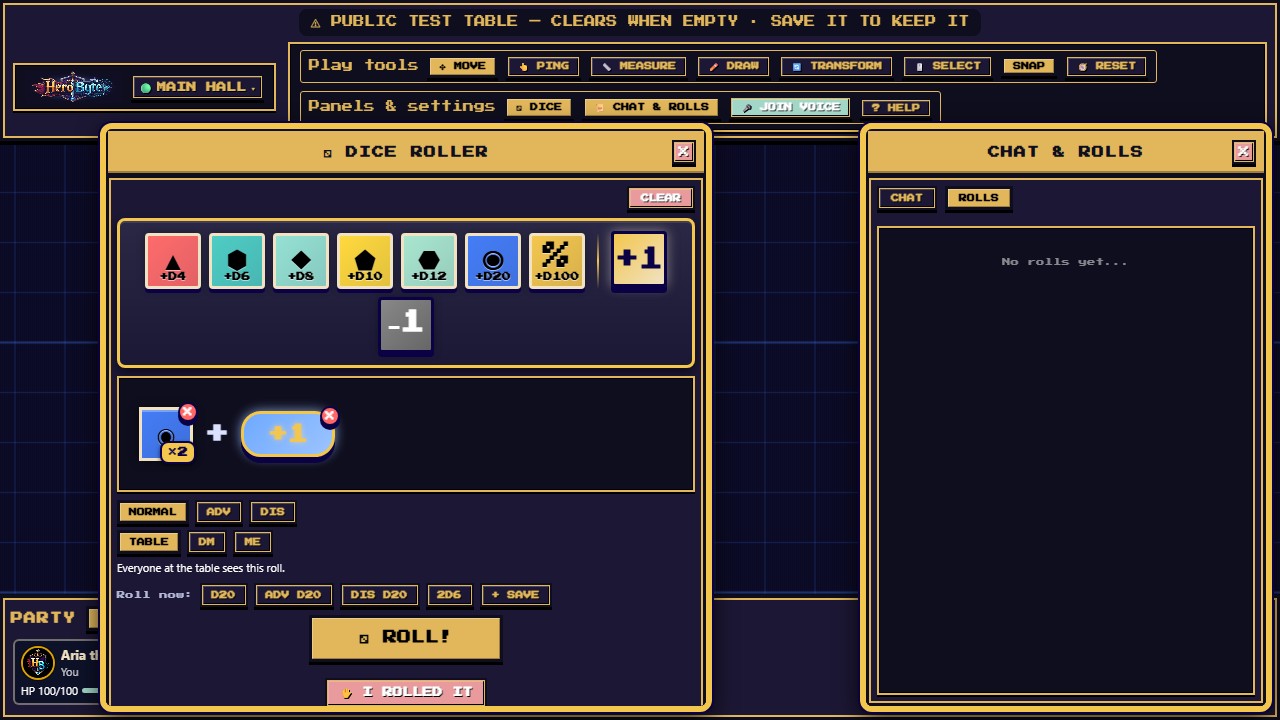
- Click dice to add them to the tray — +d4, +d6, +d8, +d10, +d12, +d20, +d100 (each is an Add d20-style builder: it rolls nothing yet) — and click again for more of the same (a
×Nbadge appears; click the badge to type an exact count). - Add +1 / −1 modifier chips; click a chip to type any value (−99 to +99).
- Pick NORMAL / ADV / DIS and TABLE / DM / ME (below).
- Press ⚂ ROLL!
The dice tumble, land with a satisfying rattle, and the result panel breaks down every die:
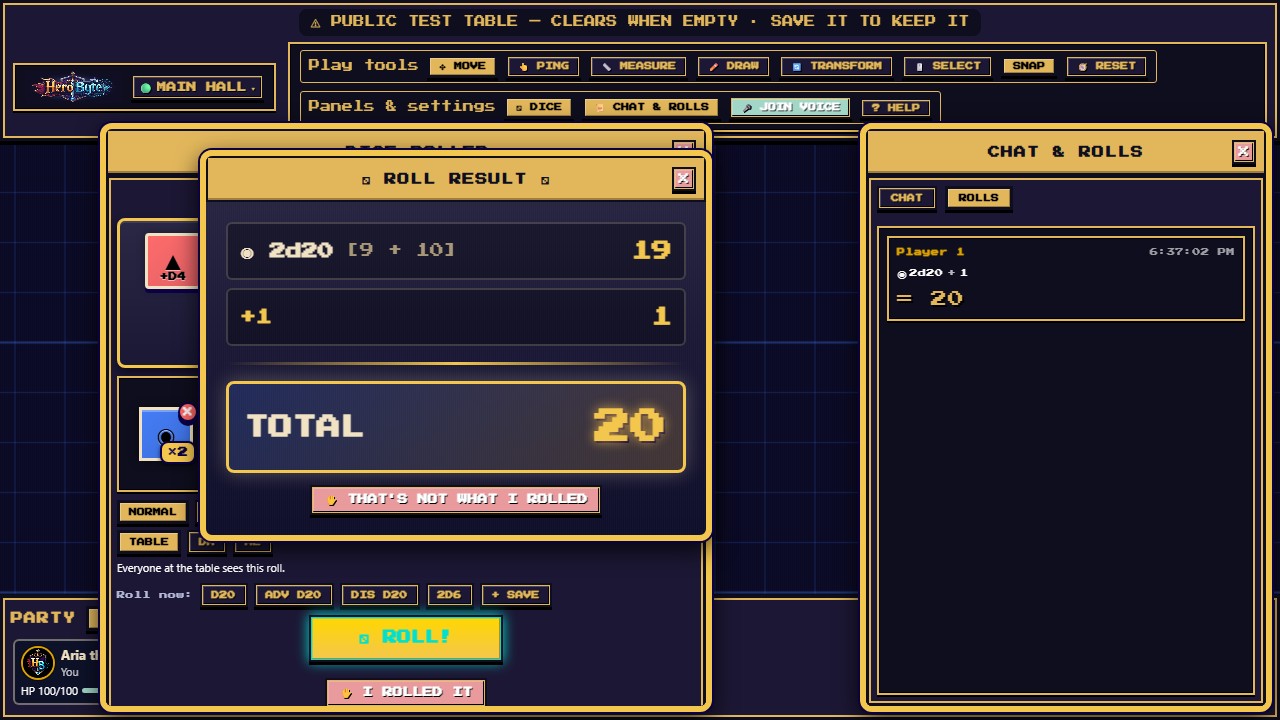
- Natural 20 on a d20 → a gold ★ CRITICAL! ★ banner (and a sting). Natural 1 → ✖ FUMBLE! ✖.
- Every roll lands in Chat & Rolls → Rolls with your name, timestamp, formula, and total, newest first. Its TABLE / DM / ME audience still applies. Long formulas collapse; click an entry for its full breakdown.
Rolling real dice instead
If your table rolls physical dice, HeroByte will take your word for it — and say so, loudly, so nobody has to wonder which numbers came from the app.
There are two ways in, and they cover the two moments you need them:
- Before rolling. Build the formula if you like, then press ✋ I ROLLED IT instead of ROLL and type what the dice came to. You do not have to build anything first — with an empty tray, type
17and that is what lands. - After rolling. The result panel offers ✋ THAT'S NOT WHAT I ROLLED. Type the real number and the log entry is rewritten in place: the app's total struck through, yours beside it.
Either way the entry wears a BY HAND badge in the log, in its own colour, with anything it replaced struck through. Nothing typed is ever dressed up as something the server rolled. Correct the same roll twice and the struck-through number stays the app's original roll, which is the one worth being able to check.
You can correct your own rolls; the DM can correct anybody's. On a phone, only the roll you just made, on its result card before you close it; correcting an older roll from the log is desktop only. And your DM can switch hand entry off for players entirely (DM Menu → Table → Permissions), in which case the app's dice are the only way in: both buttons go — from the roller and from a roll's result, on a phone too — and the roller says hand entry is off at this table in their place.
Advantage and disadvantage
ADV rolls the first die of your formula twice and keeps the higher; DIS keeps the lower. The discarded dice stay in the breakdown, struck through, so you can see what you got away with. The log tags the entry ADV or DIS.
Who sees a roll
- TABLE — everyone. The default.
- DM — you and whoever is in DM mode — including someone who enters DM mode later, who sees the earlier DM rolls still in the log — and no one else.
- ME — only you. No other player or DM receives the roll.
The line under the three buttons spells out who sees the one you picked, so a phone does not need a hover.
A hidden roll is not merely hidden in other people's app: it is never sent to them. Their browser has no copy to find. While you are at the table, your seat is yours: another browser claiming your id gets nothing and cannot knock you off. (Within reason: someone with the table password could still claim your seat hours after you leave (or as soon as the server restarts for an update), as a plain player — so hidden rolls protect you from the other people at your table, not from one who waits for you to go.)
Macros
The Roll now: row rolls at once, one press one roll: d20, ADV d20, DIS d20 and 2d6 are always there (a screen reader hears Roll d20 now). Build any roll and press + SAVE to name it and keep it. Saved macros live in this browser — they do not follow you to another device.
The dice are the server's
You do not roll — the server does. Your browser sends the formula ("2d20 + 5") and nothing else; the server rolls it, adds it up, and stamps your name on it from your connection. There is no number in the message for a modified client to change, and no name field to put someone else's in.
Drawing, measuring, pointing
✏️ Draw
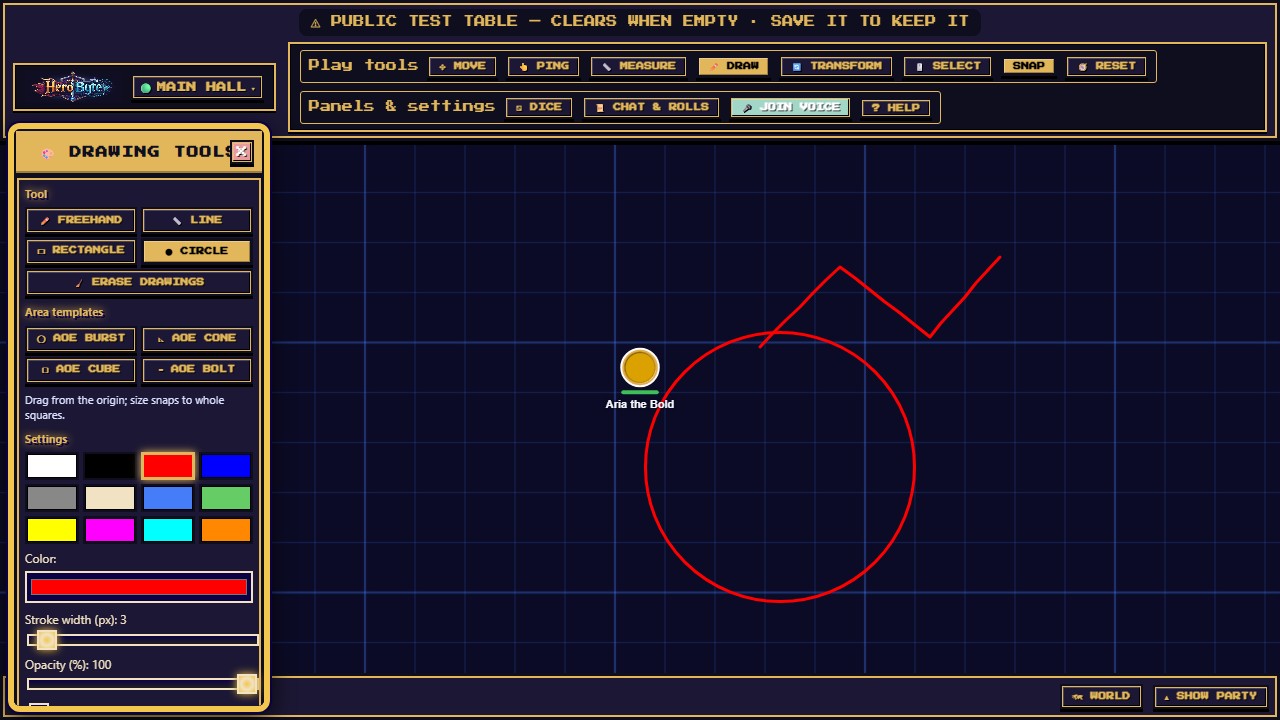
The desktop toolbox and phone sheet use Tool → Settings → History, followed by Done drawing. Choose Freehand, Line, Rectangle, Circle, or Erase drawings, or one of the four area templates below. Settings include Color, Stroke width (px) from 1–50, and Opacity (%). Rectangle and Circle also offer Filled. Desktop includes 12 preset colors; both layouts have a color picker. Your settings stay selected when the layout changes. The screenshot above shows the desktop window's Tool, Area templates and Settings sections; scroll the window for History.
On the phone, Hide controls makes room on the map while your drawing tool stays active. The compact row keeps Undo drawing, Redo drawing, Cancel stroke and Done drawing available. Opening and closing Tools or Help keeps that compact row. Show controls restores the tools and your selected settings; Done drawing exits drawing mode. Starting Draw again opens the settings sheet.
- A completed drawing syncs to everyone when you finish the stroke or shape.
- Choose ✥ Move in the header (phone: Tools → Move) to put the toolbox away and return to moving tokens and panning the map.
- Undo/redo (buttons, or Ctrl+Z / Ctrl+Y while draw mode is active) affect your own drawings only.
- Erase drawings affects annotations, with Eraser width (px) as its only setting. Crossing a freehand stroke removes that section; other drawing shapes are removed whole. Partial freehand erasing supports Undo; whole-shape deletion currently does not.
- You can erase, move and delete your own drawings, and any older drawing that has no owner; the DM can remove anyone's. A drawing the DM has locked stays as it is for everyone until the DM unlocks it — the eraser and Delete say so instead of removing it. Clear all drawings removes every unlocked annotation, with confirmation, and is DM-only. Terrain painting and Erase terrain are separate Build map tools.
Area templates
Choose AoE Burst (a circle), AoE Cone, AoE Cube (a square) or AoE Bolt (a line) under desktop Area templates, or in the phone's Tool group; once one is active, a line beside the buttons (under them on a desktop, above them on a phone) says what shape it draws. Drag from the point of origin outward — the origin snaps to the grid, and the size snaps to whole squares, so a template reads as a round number of feet. Release and it lands on the map labelled with its size and shape (15 ft cone; a Burst reads 20 ft circle — its radius — a Cube 15 ft square, a Bolt 30 ft line), with an automatic translucent fill. Stroke width changes the outline; the drag determines the area. There is no separate Filled toggle.
Templates use your drawing color. Opacity changes the outline and translucent fill; the size label stays visible, including at 0% opacity. Creation supports Undo/Redo, and the eraser removes the template. Everyone at the table sees it. A cone is drawn to 5e's rule — as wide at its far edge as it is long.
📏 Measure
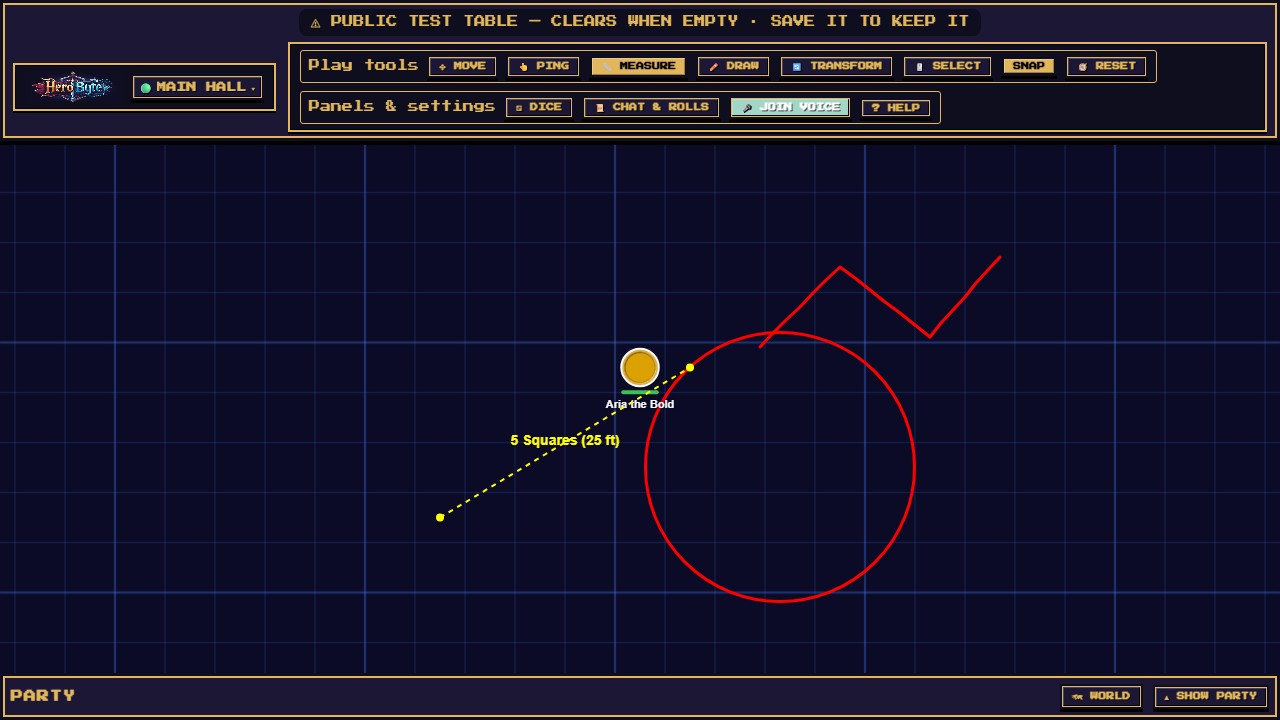
Click a start point, and a dashed line follows your cursor with a live readout like 3 Squares (15 ft); click again to freeze it, click a third time to start fresh.
The whole table sees your line while you draw it, labelled with your name, so "is Grak in range?" is one question with one answer. Putting the tool away clears it again.
Distance is counted by the table's diagonal rule, which the DM sets (5e by default: every square costs the same, so a two-square diagonal is 10 ft). Feet-per-square is a DM setting too; 5 ft is the default.
👆 Ping
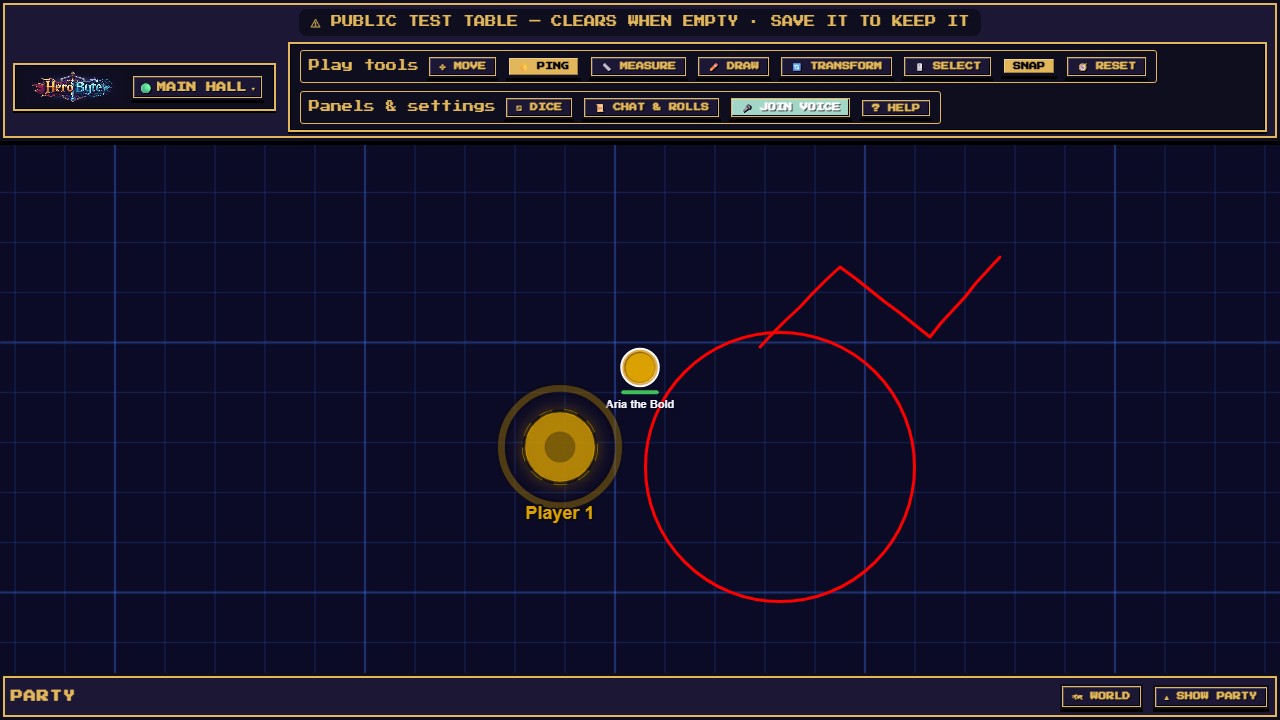
Your cursor becomes a pulsing ring; click to plant a ping — a colored burst with your name under it, visible for 3 seconds, with a chime, to the DM and to every player who can see that spot (with fog on, a player whose fog covers the spot does not see a player's ping); a DM's ping reaches everyone, fog or not.
Props (when your DM turns them on)
If your DM ticks Players can add props in their menu, a 📦 PROPS button appears in the Party bar at the bottom (on a phone: Tools → Props). It turns any picture into a piece of the scene:
- Add a prop — upload an image or paste a URL, give it a label, pick a size, press + ADD PROP. It lands at the centre of your view; drag it into place. Generate a treasure chest in your favorite image tool and put it on the table while the DM describes the room — that's exactly what this is for.
- Scatter — set ×N before adding and that many copies land in a loose pile, numbered, each grabbable on its own.
- Reshape it — the 🔄 Transform tool puts scale and rotate handles on your props, the same handles drawings get.
- Yours are yours — you can edit and delete only the props you created. The DM can adjust or remove anything.
If the button isn't there, the table has props switched off — ask your DM.
Voice chat
Voice works like joining a Discord call: one press to join, and you hear everyone in it.
- Join: press 🎤 Join voice — in the header's Panels & settings row on a computer; on a phone, at the top of Party, or on the voice chip at the top of the map while a call is running. Your browser asks for the microphone (some ask on every visit).
- Before you join you can see whether a call is running and how many are in it (for example 2 in call).
- Mute / Unmute silences your mic and keeps you in the call: you still hear everyone. On a computer your card's mic button does the same once you are in.
- Leave voice hangs up.
- On a computer, a 🎧 on a character's card (select a row in the Party, or show every card with ▦ CARDS) marks someone in the call and 🔇 someone muted, and when someone talks their portrait glows in their colour and scales up (lightened so it shows; green for a character with no colour; on their turn the gold turn glow shows instead). On a phone, the top of Party lists who is in the call by name, with (muted) beside anyone muted.
- It comes back by itself. After a network blip, however long, you are back in the call in the same muted or unmuted state. After a reload you are too (some browsers ask for the microphone again first; if the table takes more than a minute to let you back in, press Join voice). Closing the tab and opening it again, or a browser restoring it, does not rejoin: press Join voice. If your browser blocks the sound until you tap, a 🔊 Tap to hear voice button appears.
- If someone shows as Can't reach _name_, your two browsers could not connect directly; HeroByte keeps trying. Voice goes straight between players' browsers, with no relay server, so a phone on mobile data behind some carriers may not connect: Wi-Fi works best. Someone whose connection dropped without leaving can also show this, and stay listed in the call, for a few minutes.
- Because voice connects browsers directly, everyone in the call with you can find your internet (IP) address with their browser's developer tools (HeroByte never shows it), and while you are in a call with anyone else, your browser asks a Google server and a Twilio server to look your address up. If you don't join voice, nothing is shared.
- If your mic stops (for example it is unplugged), HeroByte takes you out of the call and says so beside Join voice; press it to come back. If others stop hearing you while you still look live, press Leave voice, then Join voice.
- On a phone, locking the screen or switching apps can cut the mic (a browser rule no web page can change). If the others stop hearing you, press Leave voice, then Join voice.
- Headphones are strongly recommended to avoid echo. Microphone access requires
https://orlocalhost.
Initiative and combat
Press INIT on your card (select your row in the Party, or show every card with ▦ CARDS; on a phone, ⚔️ INIT on your row in Party) to set initiative:
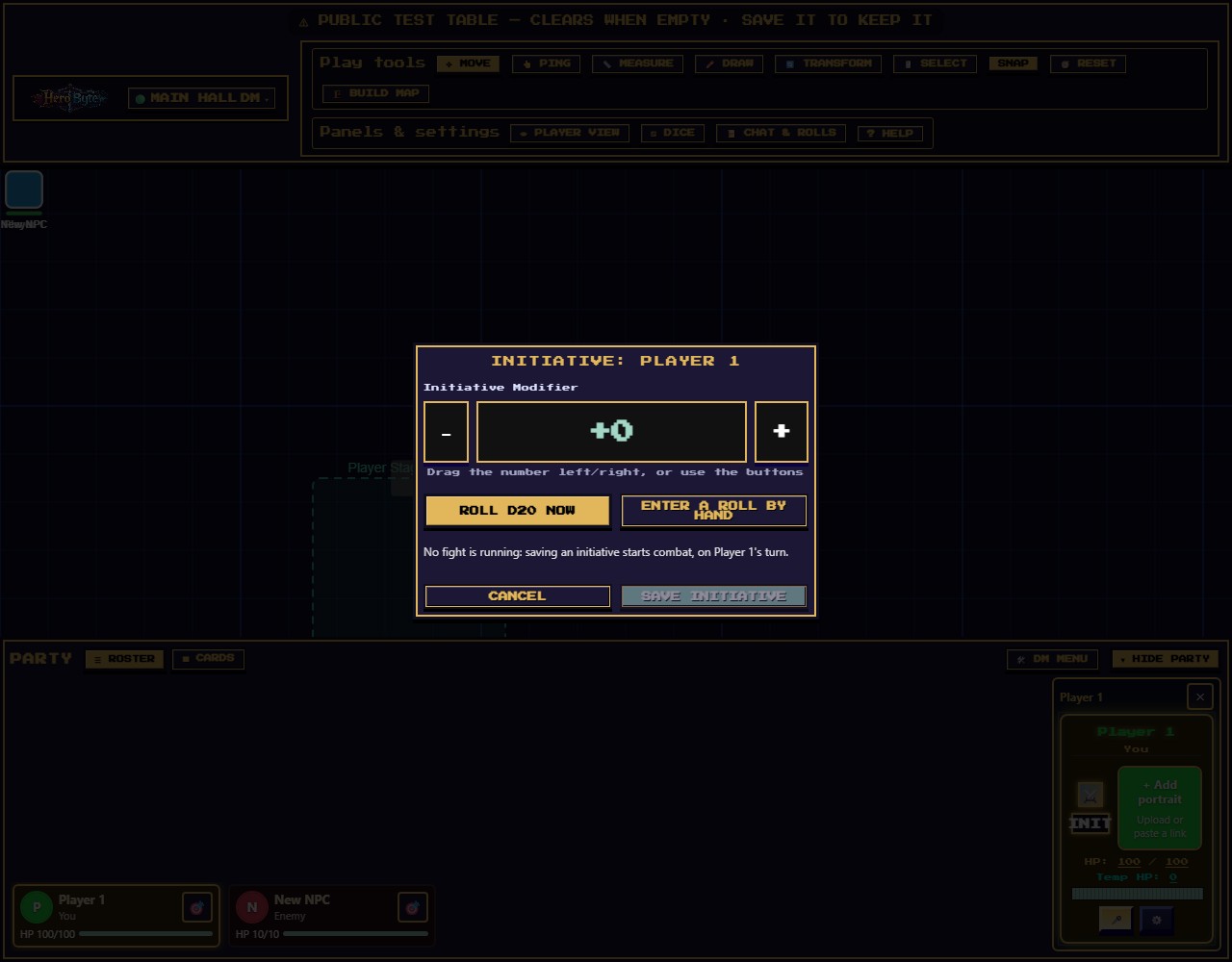
- Set the Initiative Modifier — drag the number left/right, or press − / + — then ROLL D20 NOW. The server throws the die, on the same generator the dice roller uses, and the result appears in the roll log for the whole table with your character's name on it. The dialog closes itself — there is nothing further to save.
- Or press ENTER A ROLL BY HAND, type the d20 you rolled at your real table, and press SAVE INITIATIVE. That reaches the log too, badged BY HAND — see Rolling real dice instead, which works the same way everywhere else you roll. If your DM has turned hand entry off, the dialog says so instead of offering the button.
- Any initiative set while no fight is running starts combat for the whole table, on that character's turn (when no fight is running, the dialog says so before you press): on desktop the Party reorders by initiative, its bar shows ⚔️ Combat Active with
Turn N of M, and the current combatant's row reads Turn in a white outline (its card, when shown, wears a white ring in a gold glow — a DM's own card has a gold border of its own, so the ring is the cue, not the colour). On a phone, see Playing on a phone or tablet.
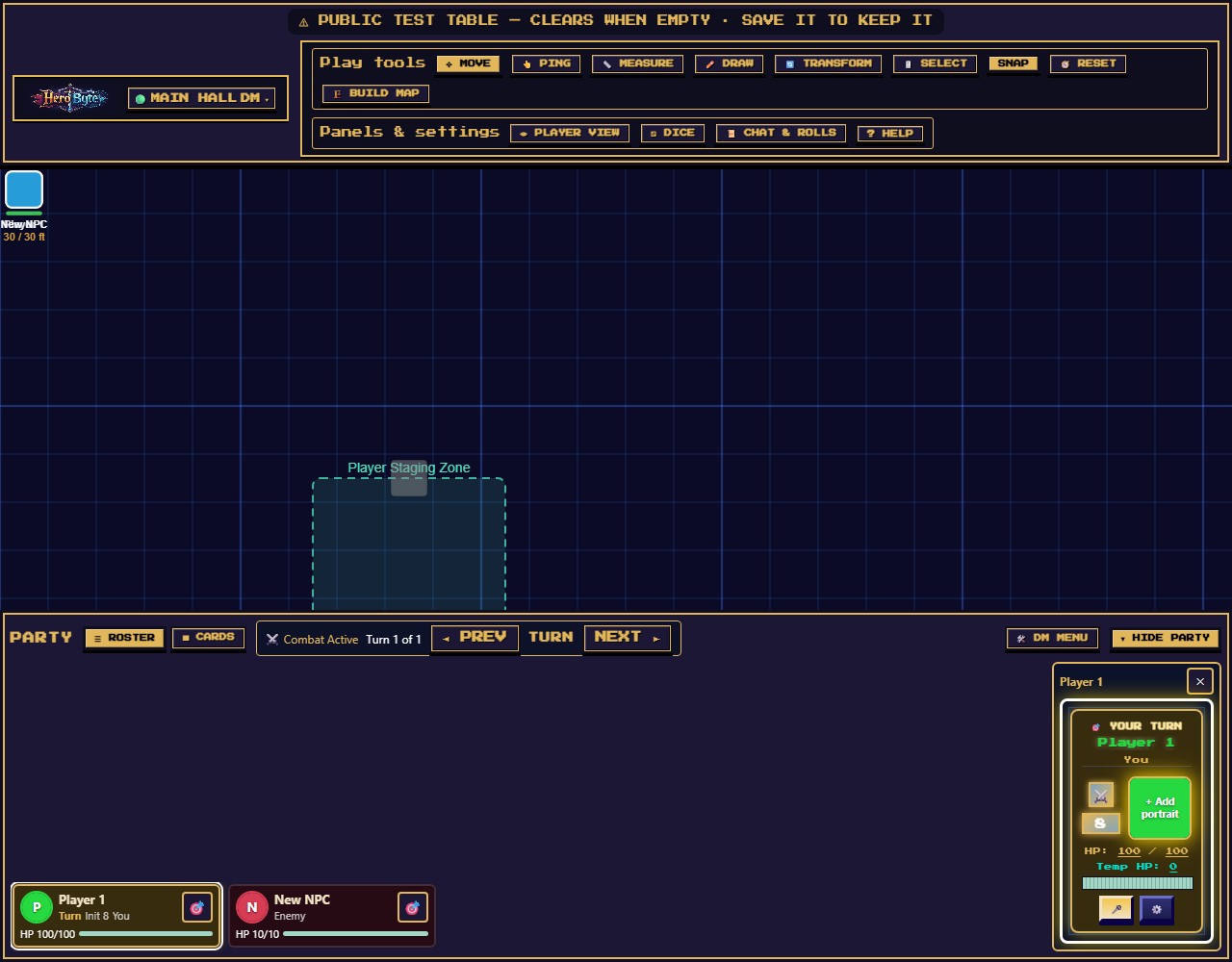
- ◄ PREV / NEXT ► advance the turn (any player can nudge it; a chime marks each turn change).
- On your turn, your card says 🎯 YOUR TURN.
- Ending combat and clearing everyone's initiative are DM controls.
Doors, fog, and what you can see
When the DM runs a built map (walls, doors, fog of war):
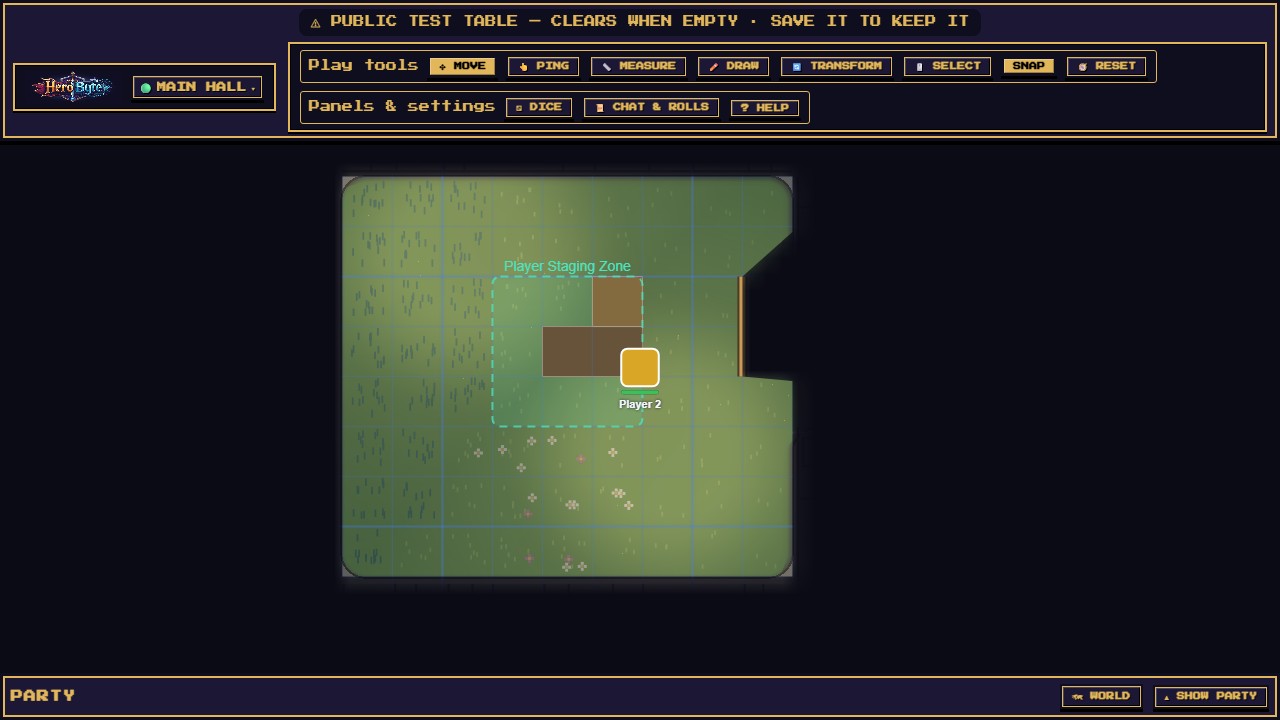
- Fog of war hides everything your characters can't see. Vision radiates from your own tokens and is blocked by walls and closed doors — move, and your view moves with you.
- Your token may have a sight limit. The DM can give any token a radius in feet — a torch, darkvision, a blindfold — and beyond it you see nothing even down an open corridor. Unset means you see as far as the walls allow, which is how every table worked before. Ask your DM; there is no player control for it, by design (a limit only ever narrows what you can see, so being able to switch it off would just undo the dark).
- Somewhere you have already been stays dimly lit. Once your tokens have seen a patch of map it is remembered and drawn shaded rather than black, so you can find your way back through a dungeon you have explored. It is only a memory of the GROUND — anything that has wandered in since is still hidden, because the table never sent it to you. The memory is stored in your own browser, per table and per map, so it does not follow you to another device and clears when the DM publishes a different map.
- Doors are clickable: click to open or close (everyone hears the creak/slam). A small gold square marks a locked door — only the DM can open those; clicking one tells you it is locked, with a rattle of the latch.
- Secret doors exist. You won't see them until the DM reveals one — to you it's just wall.
- At night the whole map cools and darkens, and torches, braziers, and other glowing props cast light pools.
The World Map
🗺 WORLD (on a phone, ⚒ TOOLS → World) opens your campaign map: every place your party has actually discovered, in a tree, with ◀ you are here on the one you are standing in.
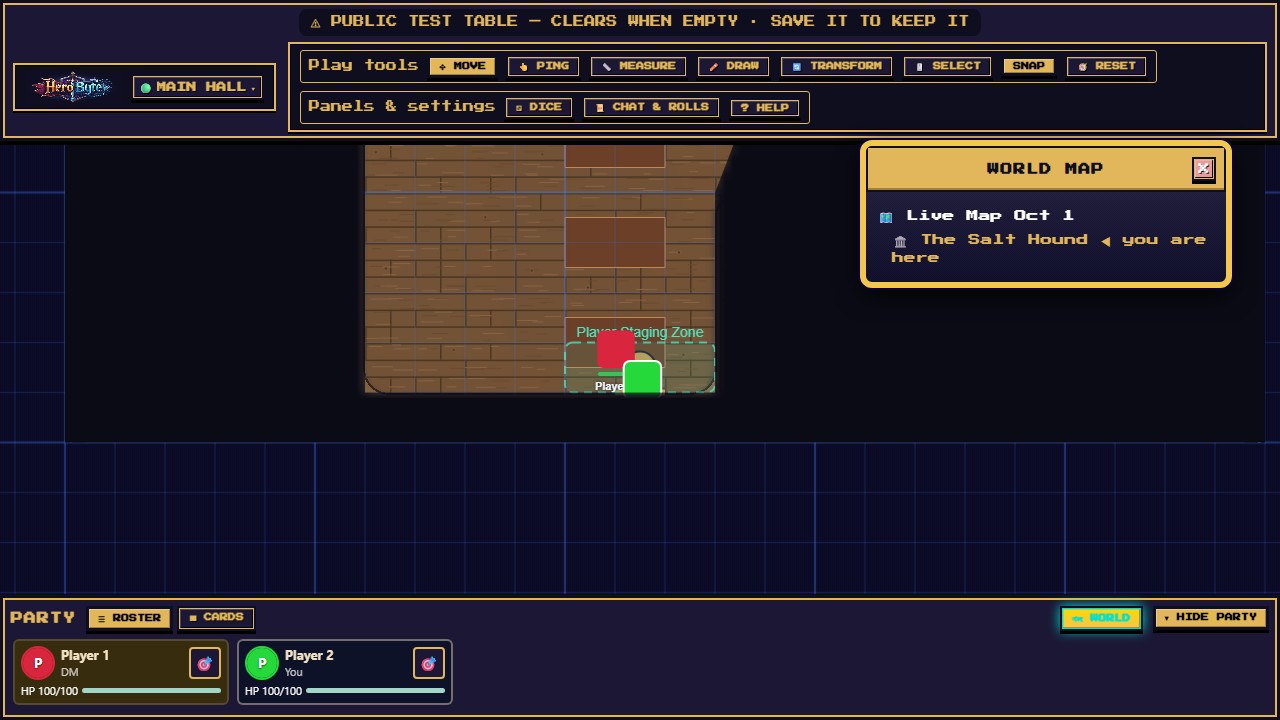
Places your DM has not revealed are not on it — and they are not hidden from it either, they were never sent to your browser at all.
Some maps have 🚪 door, stair or signpost sprites on them — a way through to somewhere else. They are signposts, not buttons: your DM opens them, and when they do the whole table travels together. When you arrive somewhere new you will often find yourselves in a marked entrance — a dashed box just inside the door — which is simply where the party walks in.
Look & feel
Both live in the Table menu under Preferences. They are yours alone: nobody else at the table sees them change, and each is remembered in this browser.
- Display → 📺 CRT — scanlines, bloom, and a monitor bezel for the full retro-dungeon experience.
- Sound & motion — Motion (Full / Subtle / Off) for animations, Mute sound effects, and Volume. HeroByte respects your OS "reduce motion" setting by default. Damage and healing float off cards and tokens as rising
-7/+4numbers.
Playing on a phone or tablet
Initiative works on a phone too: ⚔️ INIT on your character's row in Party opens the same dialog, each row that has an initiative reads its Init and, on the character whose turn it is, ▶ Turn, and while combat runs the turn strip at the top of the map names whose turn it is, just below ◄ PREV / NEXT ► (Turn: — when nobody holds the turn, or when it is a creature you cannot see) (your spend and the DM's Reset are in each row's ⚙ EDIT).
On a small or touch screen, HeroByte switches to a full-screen map with a five-button dock — no setup required:
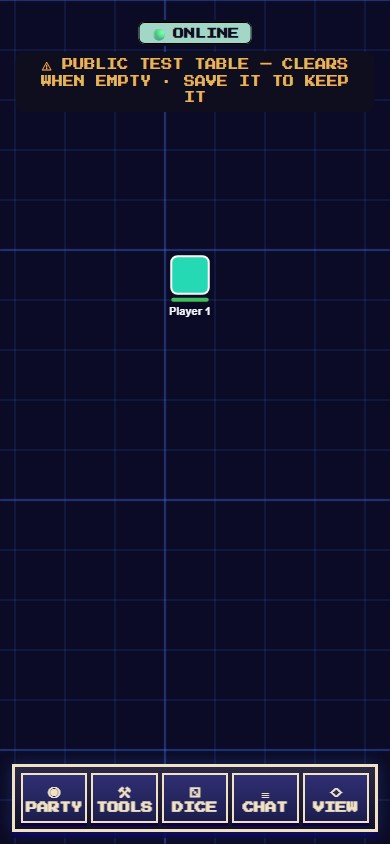 | 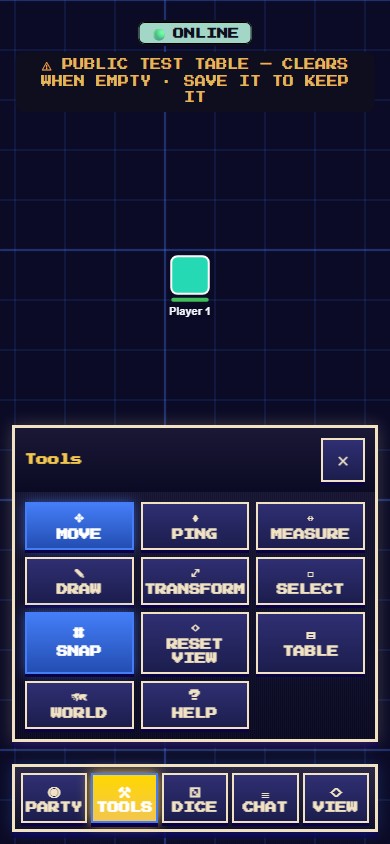 |
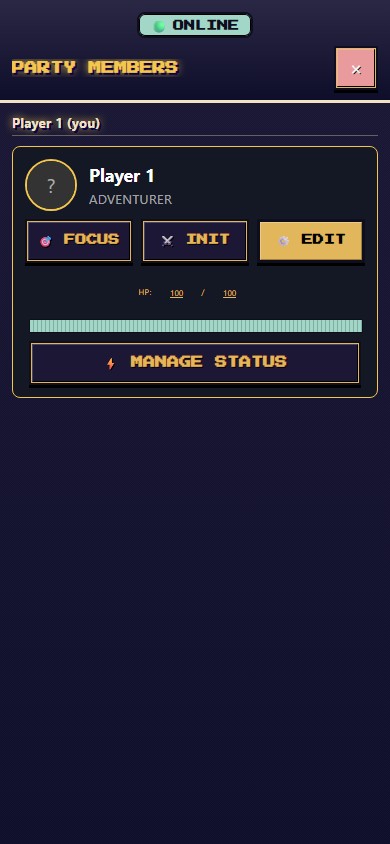
- ◉ PARTY — the party screen: the voice call at the top (🎤 Join voice, or Mute / Leave voice and who is in the call), then each player's seat as a heading with their characters listed under it — portraits, HP (tap or drag your own to edit), status effects, 🎯 FOCUS (closes the screen and centres the map on that character's token), and — on your own rows — ⚔️ INIT (your character's initiative) and ⚙️ EDIT for name, colour, portrait, Token picture…, Token frame…, token size, ➕ Add Character, and Save character / Load character….
- ⚒ TOOLS — Move, Ping, Measure, Draw (opens the drawing sheet; Hide controls makes room on the map), Transform, Select, Snap, Reset view (moves the view back to the map's top-left corner at 100% zoom), Table (your role and Preferences), and Help. Players also have World, plus Props when the DM allows players to add them.
- ⚂ DICE — a full-screen roller; the result appears as a tap-to-dismiss card.
- ≡ Chat — opens Chat & Rolls full screen for table messages, whispers, and dice history. ◇ RESET does the same reset (back to the map's top-left corner, 100% zoom); if you're the DM, that slot reads ♛ DM and opens the full DM menu — the same six tabs as the desktop window (Maps, World, Encounter, NPCs & Monsters, Props & Objects, Table) behind a swipeable chip row. Reset view in TOOLS covers the camera for a DM.
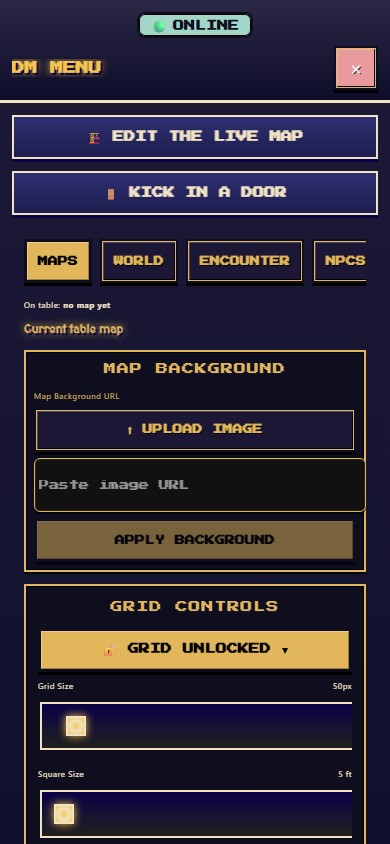
Party and Chat & Rolls open as full screens: close them with the ✕, or drag their title bar downward to flick them away. The connection (🟢 ONLINE / 🔴 OFFLINE) is the first line of every full screen's header, above its title (and at the top of the full-screen dice roller), and the first line at the top of the map, above the turn strip — laid out with them, not painted over them. When the table drops, a Reconnecting… note joins that column under it, and on a desktop hangs from the bottom edge of the header.
To move a piece by steps on a phone: TOOLS → □ Select, tap the piece, and a d-pad appears in its sheet (hold a direction to walk; the map scrolls to keep the piece in view — the whole piece and its nameplate when the strip above the sheet has room, otherwise its top edge).
One finger pans, two fingers pinch-zoom. Preferences (CRT, Sound & motion) are in TOOLS → Table, and character files are in a row's ⚙️ EDIT. DM map authoring also works on mobile — see On a phone or tablet in the map editor guide.