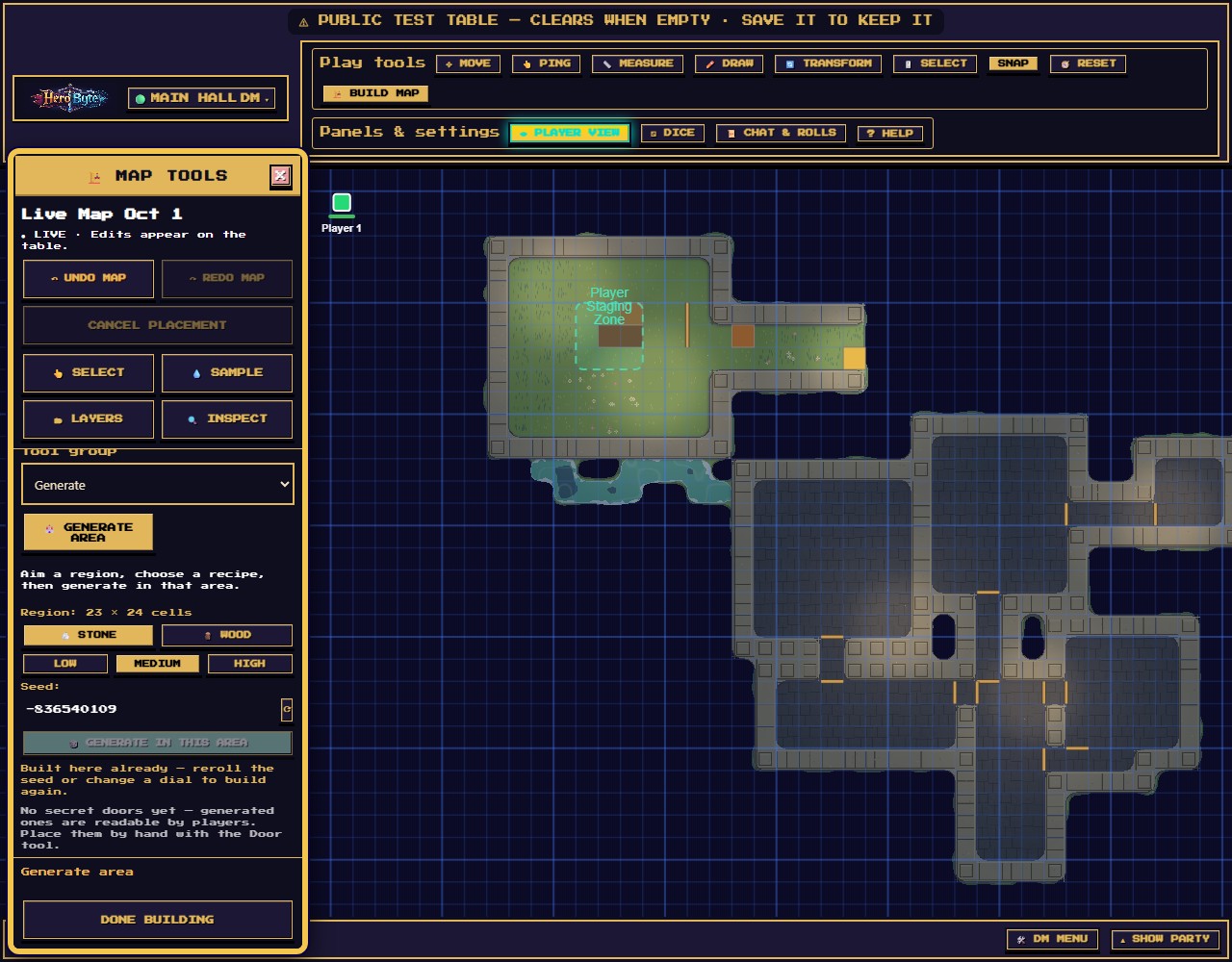
Do this before your players arrive: make a table, claim the DM seat, put a map down, send the invite, and check what your players will see. No account, nothing to install.
A computer is easiest for setup, and every step but the last also works on a phone or tablet.
1
Create a private table
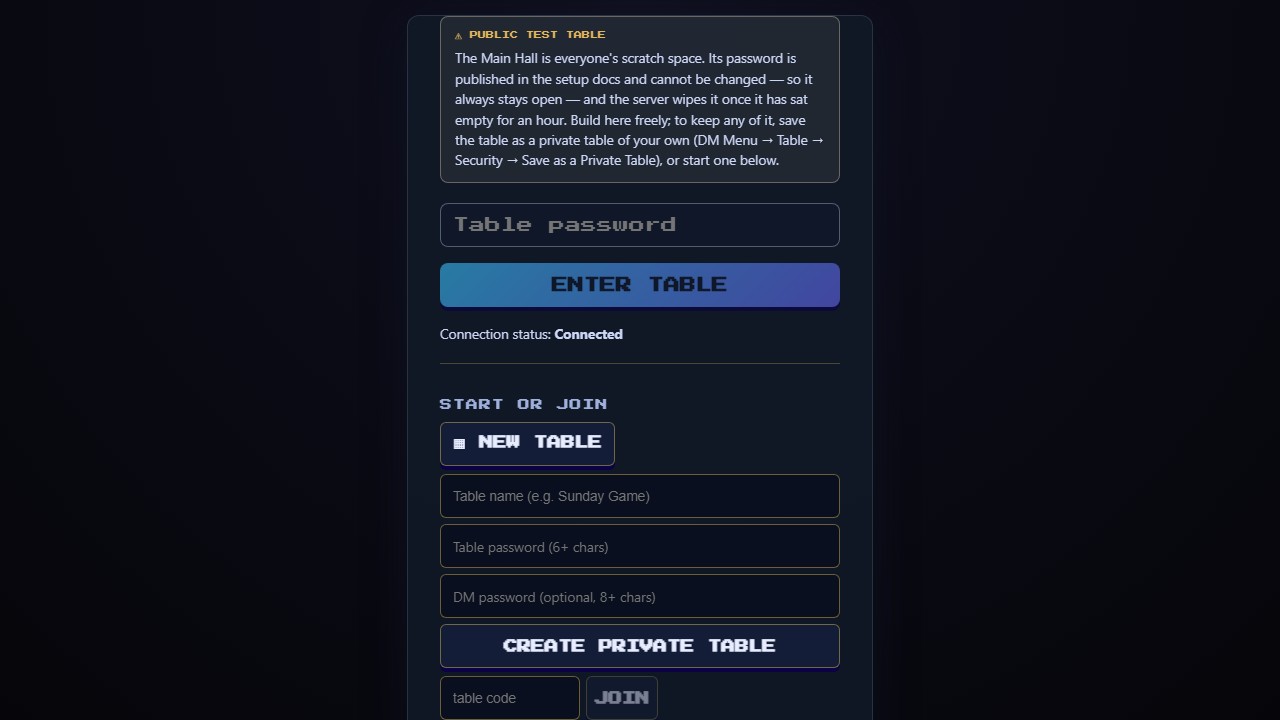
On the join screen press NEW TABLE. Give it a name you will recognise, like Sunday Game. Choose a table password of 6 or more characters: that is what your players type. Optionally choose a DM password of 8 or more. Press CREATE PRIVATE TABLE. HeroByte makes a table code like table-k3f9x2 and takes you in. A private table has its own passwords and is never cleared automatically.
ON A PHONEThe same form. Skipped the DM password? You can set it the first time you enter DM mode.
The New Table form with its two password fields
2
Enter DM mode
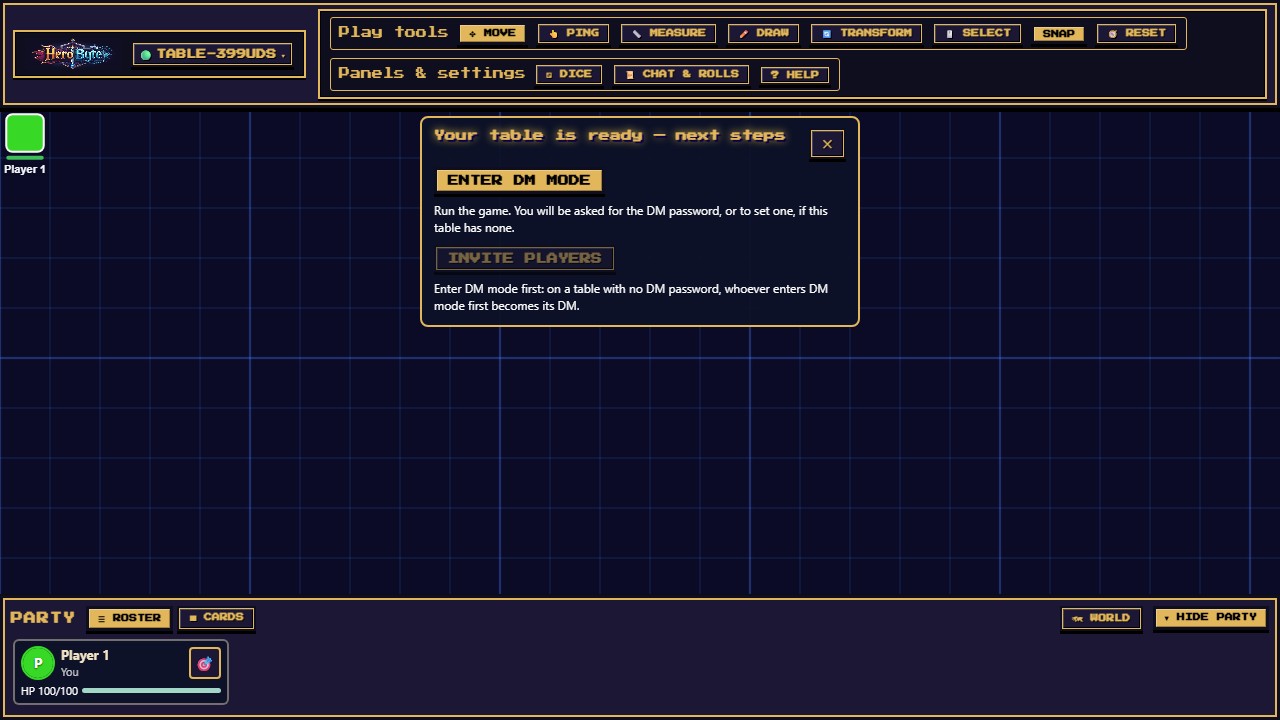
You arrive as an ordinary player, with a card offering two next steps. Press Enter DM mode on it, or open the Table button at the left of the header and press ENTER DM MODE, then type the DM password. New controls appear: Build map and PLAYER VIEW in the toolbar, and DM MENU in the Party bar.
ON A PHONETOOLS, then Table, then ENTER DM MODE. The dock's Reset slot turns into DM.
The next-steps card a new host sees: Enter DM mode and Invite players
3
Put a map on the table
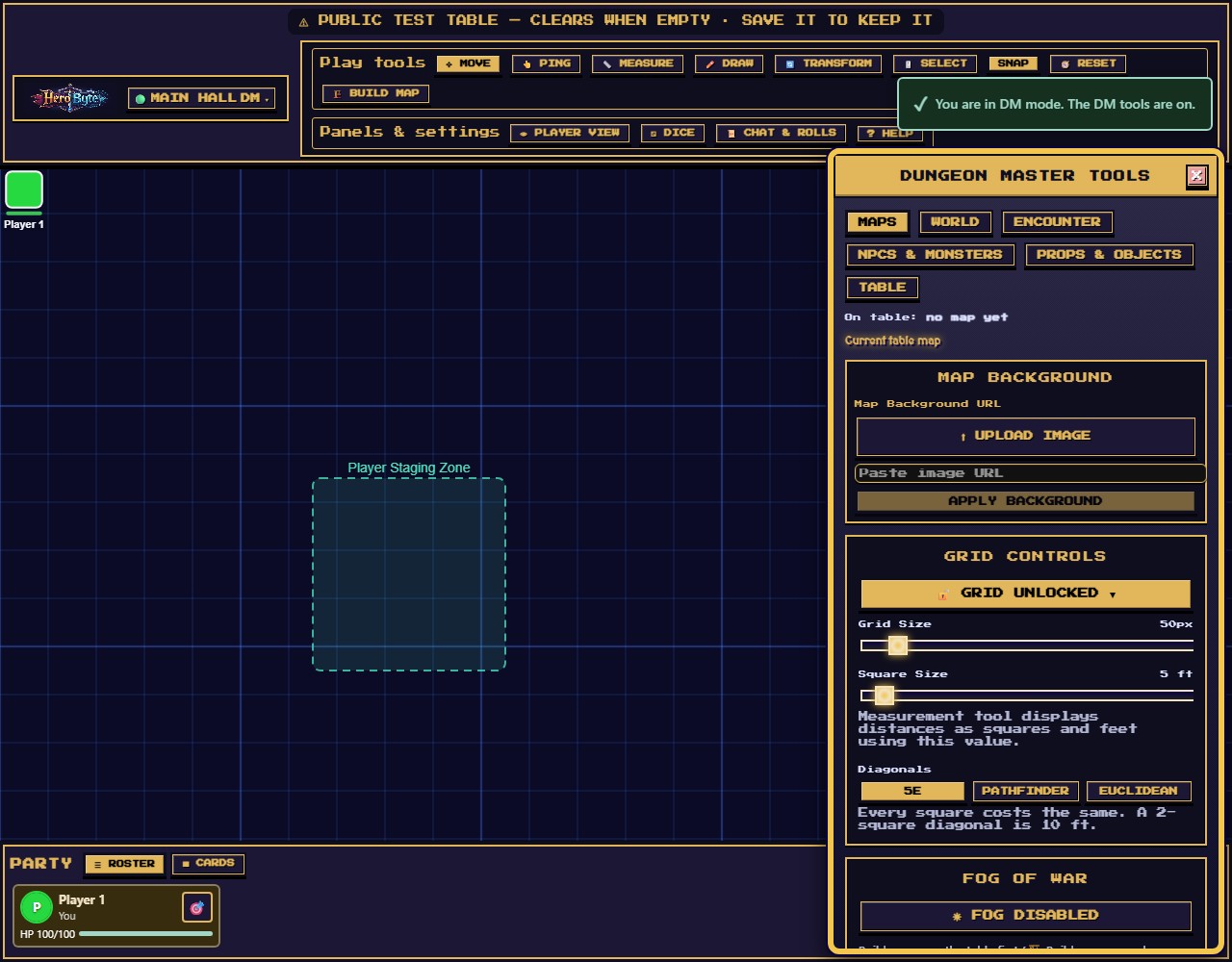
Pick whichever suits tonight. Have art already? DM Menu, Maps, then UPLOAD IMAGE under Map Background. Want rooms with walls, doors and fog? Press Build map, then START LIVE MAP. Party wandered off the plan? Once a live map is on the table, press G to kick in a door: HeroByte generates a stocked place and takes everyone there. Fog of war needs a live map, so an uploaded picture gets it once you draw walls and doors over it.
ON A PHONEDM in the dock opens the same DM Menu, and the map tools are under TOOLS.
The Maps tab: the On table line, then Map Background with upload and URL
4
Invite your players
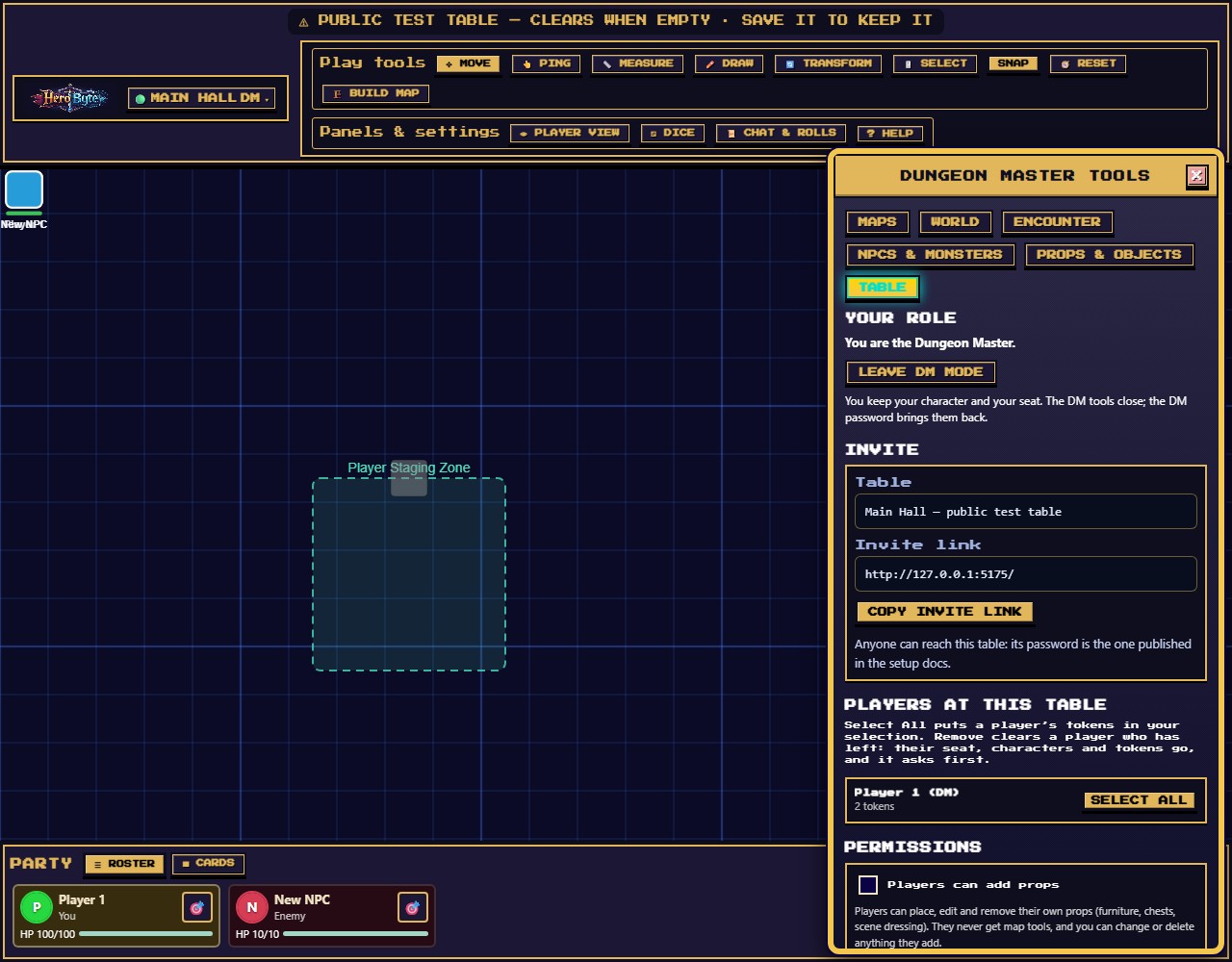
Press Invite players on the next-steps card, or open DM Menu, Table, Invite and press Copy invite link. Send the link to your party. It deliberately carries no password, so send the table password a different way: a text instead of the group chat, for example.
ON A PHONEDM, then Table, then Invite. On a plain http address the link shows in a box to copy by hand.
The Table tab: Your role, Invite, Players at this table and Permissions
5
Check what they will see
Turn on PLAYER VIEW. You see exactly what the players see: fog worked out from the party's vision, secret doors hidden, your DM overlays gone. You keep every DM power while it is on, except at doors, which answer you as they would a player. One more press turns it off. Use it every time you place something you want kept secret.
ON A PHONEPlayer View is on the computer layout only, so check this step from a computer.
The player lens: the DM sees the table through the party's eyes
CHECK YOUR WORK
The Table button at the left of the header shows DM.
DM Menu, Maps starts with On table and the name of your map.
Your players have the link and, sent another way, the table password.
With Player View on, you see only what their tokens can see.
IF YOU SEE THIS
Invite players is greyed out. It waits until you have entered DM mode, so the link can't go out before you have claimed the DM seat. On a table with no DM password, whoever enters DM mode first becomes its DM. Enter DM mode and the button lights up, and it stays lit even if you step down later.
TRYING IT OUT FIRST?
The Main Hall is the public test table, so practise there. It wipes itself after an hour with nobody in it. Built something worth keeping? DM Menu, Table, Security, Save as a Private Table copies all of it to a table of your own.